Azure Linux OS Guard on Azure Kubernetes Service
In this post
For the last ten years or so, I’ve been diligently watching Microsoft Build and Ignite. It’s always a highlight for what’s happening with Microsoft’s .NET ecosystem and Azure cloud. Whether through a viewing party, in-person, or at home during a lockdown, it’s certainly always an interesting experience.
Just a few weeks ago I was going through my Ignite playlist and ended up at the “Secure AKS workloads with Azure Linux” session, where product managers on the Azure Linux team briefly discussed some updates that were introduced in Azure Linux 3. They also covered the importance of building an immutable OS variant called Azure Linux with OS Guard, which was something that stood out to me.
Another bit from the session caught my attention for a specific reason, where the PMs stated the following:
🗣️ Quote
“Everything we do [related to Azure Linux] is public on GitHub.”
“Build, modernize, and secure AKS workloads with Azure Linux | BRK144 - Microsoft Ignite 2025”
That comment was the nudge I needed to finally take a closer look at how Azure Linux is being developed. And to be completely honest, it was something that I was putting off anyway. I figured that there’s probably a lot of cool engineering going on that’s worth taking a look at, and since I take every opportunity I can to learn more about how Linux works, I decided to write this blog about my findings. I don’t mind doing it because applying this process has helped me over the years to become comfortable with systems I used to avoid.
On top of being curious about how Azure Linux is being built, the promise of an immutable OS for AKS gave me a reason to also dig into OS Guard’s details. Let’s take a look.
Why immutable distributions caught my attention
Little over a year and a half ago, a colleague and I were comparing a bunch of various Kubernetes distributions. We immediately saw the benefit of immutable distributions, as it would allow us to focus more on delivering apps and less about worrying about configuring and maintaining Linux.
We came to this conclusion because a lot of these Kubernetes distro’s provided some form of automated distro update mechanism, a locked down runtime environment and flexibility via some type of configuration language. We’d be able to pour this into some sort of CI/CD pipeline and our engineers would be able to configure this stuff because it’s essentially part of their existing workflow.
As we were looking for ways to host Kubernetes on-premises within a set of technical and (perhaps more importantly) organizational parameters, finding a distribution that resonates with an organization’s technical and internal mechanics is super important when recommending a Kubernetes distribution. This is especially the case when you’re looking at self-hosted Kubernetes (on-premise or cloud), as you’re in control of both the control and worker nodes. You need to bring your a-game with this one, as far as ops-skills goes, as there’s a bunch of moving parts that you’ll end up having to deal with from all the layers of the stack.
🔥 Warning
I’d personally recommend against running Kubernetes on-prem without any Linux knowledge on hand. The exception here is if you’re able to ease into it with workloads that are not mission-critical to the organization.
There are plenty of K8s distributions out there that assume Linux knowledge is a given, but for a lot of organizations that have historically run on the Microsoft stack, but really want to use Kubernetes, that becomes a bit of a problem. These organisations understand the Kubernetes value proposition but are often held back because they have a ton of expertise in the Microsoft stack, not as much with Linux. When you’re going to run Kubernetes, I don’t think you can get around this; you should always have some people with at least some level of understanding of Linux. Even if, for instance, you only want to run Windows workloads on Kubernetes, you will still need Linux for the control plane as those components are not available for Windows.
Fortunately some Kubernetes distributions offer an out of the box experience that tries to take away a lot of the Linux management complexities so you can just focus on the Kubernetes bits. And while the choice might be relatively straightforward, you should know they all achieve this in various different ways (and as a result have widely different licensing mechanics and pricing). Making a decision which distro to go with can significantly influence both security and operational complexity. You see, a lot of these options require you to pick your favorite Linux distribution, and Kubernetes is automatically installed and (pre)configured according to the vendor’s best practices. Of course, they all have different viewpoints on what that exactly means.
🔎 Example
For example, OpenShift assigns a range of user and group IDs plus unique SELinux MCS labels to each new namespace. Container images that specify UIDs outside the assigned range will fail to start unless you grant them special privileges. Other distros typically don’t enforce this restriction, so it’s something you need to account for when pulling workloads from public registries.
But to be completely honest, that’s a trade-off I’ll happily make. Especially considering how security threats are evolving fast, especially with agentic AI capabilities, I’d rather lean on the experts, lock in best practices, and go on about my day.
Anyway, there were a few distributions that I’ve had a chance to take a closer look at:
- Red Hat OpenShift (OCP)
- Origin Community Distribution (OKD)
- VMware Kubernetes Service (VKS)
- Nutanix Kubernetes Platform (NKP)
- SUSE’s Rancher Kubernetes Engine (2)
- AKS enabled by Azure Arc on Azure Local
A couple of these distributions, not all of them, implement a bunch of immutable OS principles! While each distribution certainly implements these ideas slightly differently, they all share the same goal: a stable, consistent, and trustworthy operating system that reduces the risk of accidental or malicious tampering while remaining flexible enough to support applications in a modern environment.
💡 Note
There are even more Certified Kubernetes Distributions over on the CNCF Landscape page.
However, there are often important architectural differences in how they achieve it or how it fits into a bigger automation/deployment picture of a given distro. For instance:
- OpenShift’s immutable Red Hat Enterprise Linux CoreOS (RHCOS) is paired with an integrated update protocol via Zincati and Cincinnati that coordinates OS updates across your cluster.
- Sidero Talos Linux, meanwhile, is immutable by design, as it runs entirely from signed SquashFS images with updates delivered as atomic full-node replacements orchestrated through its declarative configuration model.
- Talos is a ground-up rewrite of the Linux userspace, not based on any other distro or apps that you typically see in those, built exclusively to run Kubernetes as secure and efficiently as possible. Very cool!
Now how does this relate to what’s going on with immutable operating system options in Azure? Well, you’re already able to provision a couple of these immutable Linux distro variants on Microsoft.Compute (IAAS) either by building and uploading an image via the Azure VM Image Builder and pushing it to a Compute Gallery instance, or you can skip that by provisioning an image directly from the Azure Marketplace if it’s available.
💡 Note
Some distro’s expect you to build and push an image onto a storage account from your local machine. Depending on the size of the image, you can always use a Virtual Machine or
Microsoft.Resources/deploymentScriptsto perform these steps remotely, if for instance, your upload speed is absolutely abysmal.You could even use the Azure Cloud Shell, if you wanted to. Just be aware of some of the file size limits and compute throughputs in such a tiny containerized environment.
Before diving into Azure Linux’s approach, I needed to understand what makes an OS “immutable”… And as I’d soon discover, that term is more nuanced than it first appears.
Understanding Immutable Operating Systems
Due to the research my colleague and I did, I ended up getting pulled back into the world of immutable Linux distributions, both desktop and server variants! Before that, I had read about them but never really dug into the topic all that much. I figured “immutable” probably meant that the operating system could not be modified while it was running, and that the thing would be locked in place. It seemed like a simple enough explanation… One that I had been content with for some time, but after installing Fedora Silverblue and tinkering with it for a bit, it turned out things were quite a bit more nuanced.
In fact, I’d soon find out that “immutable” is somewhat of a misnomer. Colin Walters, creator of libostree (OSTree) and rpm-ostree at Red Hat, writes that the term can be misleading, as these systems aren’t fully immutable. They have writable persistent storage, support in-place updates, and still let you have root access. What makes them special is that they’re designed to resist what Colin calls “hysteresis”, which he writes is the accumulation of hidden state over time that makes systems unpredictable.
💡 Note
OSTree and rpm-ostree are foundational technologies in the immutable OS space. While others exist, they represent elegant approaches to image-based OS delivery with atomic updates and easy rollbacks.
So what do different immutable distributions actually do? At a minimum, they share a couple of core characteristics:
- Read-only core system: Sections of the filesystem (typically
/usrand kernel artifacts) are mounted read-only. - Minimal base: Only essential packages are included; reduces any potential attack surface.
- Image-based atomic updates: The OS is updated as a complete, versioned unit rather than individual packages.
- System reproducibility: Every deployment from the same image produces an identical system state.
Now “immutable” doesn’t mean the whole disk is frozen, only certain mount points are. Most distributions keep specific writable areas (commonly /var for logs and runtime state, container data, and sometimes an overlay-based /etc) because applications will still need somewhere to persist data. You can say that the “immutability guarantee” only really applies to the sealed base and not every byte of storage.
Here’s a typical filesystem layout showing which directories are immutable (read-only) vs. mutable (writable):
/                    # Root filesystem (mostly read-only OS image)
├── usr/            # 🔒 Immutable - System binaries and libraries
├── boot/           # ⚙️ Both - Kernel & bootloader (auto-updated)
├── etc/            # ✏️ Mutable - System configuration (overlay/merged)
├── var/            # ✏️ Mutable - System state, logs, app data
├── home/           # ✏️ Mutable - User home directories
├── tmp/            # ♻️ Ephemeral - Temporary files (often cleared on reboot)
├── run/            # ♻️ Ephemeral - Runtime state (tmpfs)
└── opt/            # Often unused on immutable systems
However, as often the case with Linux distributions, everyone seems to have their own interpretation of which directories should (and should not be) immutable. So make sure you always check the docs of the distro you’re working with.
Not without trade-offs
Immutable operating systems come with trade-offs that are equally worth understanding. Some distros will still let you SSH into a node and patch a config file, for instance, if it supports overlayfs. But using a traditional package manager to install packages via dnf install? For server operating systems, that’s generally off-limits. Some systems allow temporary emergency fixes, by stacking a writable layer on top of the read-only one, but those changes disappear at the next reboot or update. All this means that your team will require discipline and intentionality in how you manage system state.
Updates require rebooting to switch between OS versions. The update mechanism varies by distribution: ostree-based systems like Fedora Silverblue download only the differences (deltas) between your current and target version, which makes updating feel efficient. Other immutable distributions might use complete image replacements. Either way, the reboot switches you from one complete, bootable filesystem tree to another. In high-availability environments, that means coordinating rolling reboots across your cluster. Rolling back is equally straightforward: point to a previous version and reboot. Simple enough, for now.
Why immutability can help production K8s clusters
Immutable OS support kept coming up in our self-hosted Kubernetes discussions. In production, even if your team isn’t deep on Linux or Kubernetes, you’d at least want node infrastructure that’s as predictable and reliable as the workloads it runs.
It’s then that you really want to take configuration drift seriously, as it can become a real problem in Kubernetes node management. This is why I very much like Azure Kubernetes Service’s approach of updating nodes by swapping out VHDs; it encourages you to treat the OS as a disposable layer. That said, VHD-based updates alone won’t enforce immutability at runtime. On a traditional mutable OS, you can still SSH in and run apt-get install or tdnf update to modify the running system. The VHD swap is simply one update strategy among others. Immutable distributions go further by adding runtime protections that prevent modifications to those core system directories.
Without runtime enforcement, traditional package managers allow system state to accumulate over time through the combination of:
- Packages that came from your base image
- Packages you explicitly installed
- Dependency resolution choices
- Even the version of the package manager itself
This complexity makes it difficult to confidently reproduce a node’s exact state or explain how it ended up in its current configuration.
Immutable distributions solve this by treating each node as a versioned unit. Every update is a complete OS replacement with your configuration re-applied, not incremental patches that layer on top of unknown state. The system has no memory of its operational history beyond what you explicitly track.
This maps pretty well to Kubernetes’ declarative model… If you’re already running containerized workloads, then this shouldn’t feel too foreign. You’re likely thinking about infrastructure as an immutable asset, managed through infra-as-code principles. Like container images, you build OS images through a continuous integration pipeline, test them, version them, and deploy them. The same discipline and tooling you apply to applications now extends to the OS layer itself. You already describe your desired application state in manifests and let the control plane reconcile it; immutable node OS images extend that same philosophy to the infrastructure layer. Combined with atomic updates and trivial rollbacks, you get the consistency and predictability that production clusters demand.
From a security perspective, having engineers who are not as good at securing Linux as they are at securing Windows can be a security nightmare waiting to happen, as things tend to go beyond apt-get update quickly. If you want a pretty secure Linux system, you’d do well to invest additional research time into hardening strategies through software such as privileged access management, firewalls, mandatory access controls (mainly SELinux and AppArmor), and sandboxing mechanisms such as seccomp. An immutable OS makes this harder for malicious applications to compromise the underlying OS, since they can’t modify system binaries or configuration in protected areas.
That said, even though I keep yapping on about it, immutability isn’t a silver bullet. Kernel vulnerabilities, application bugs, and unauthorized root access can still pose risks. The value here is adding another layer of defense that reinforces the stability and trustworthiness of the OS foundation your workloads depend on.
OSTree and RPM-OSTree
OSTree and rpm-ostree are foundational technologies in the immutable OS space, as they represent elegant approaches to image-based OS delivery with atomic updates and easy rollbacks. (Though they are absolutely not the only options.) Let’s unpack what these technologies actually do, because they’re important to understand when you’re trying to understand immutable operating systems.
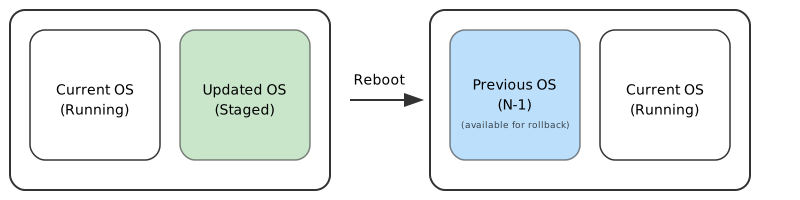
At a very high-level, you’ll often read about the following comparison to Git or container images:
- ostree: Think of it as Git for your OS. It manages versioned filesystem trees with atomic switching and checksum verification.
- rpm-ostree: Takes ostree’s immutable versioned trees and adds the ability to layer RPM packages on top.
A bit about OSTree
I read that OSTree was created by Colin Walters, who works at Red Hat, and it is designed around “image-based” OS delivery. Instead of installing individual packages on top of a base OS, OSTree treats the entire OS as a versioned artifact. This is where the Git reference comes from. You check out a specific version, verify its integrity via checksums, and switch to it atomically. If something goes wrong, reverting to a previous commit is trivial. It’s Git semantics applied to bootable operating systems.
OSTree (pronounced “OS tree”) is, in the project’s own words, “both a shared library and suite of command line tools that combines a ‘git-like’ model for committing and downloading bootable filesystem trees, along with a layer for deploying them and managing the bootloader configuration.”
The core model is like Git in that it checksums individual files and uses a content-addressed object store. But it differs from Git in a key way: OSTree “checks out” files via hardlinks, and those files need to be immutable to prevent corruption. You’re not working with a mutable working directory like you would with Git. Instead, you’re deploying complete, versioned filesystem trees that become your bootable root.
A bit about rpm-ostree
rpm-ostree builds on top of OSTree and bridges the gap between image-based and package-based systems. The rpm-ostree documentation describes it as “a hybrid image/package system” that “combines libostree as a base image format, and accepts RPM on both the client and server side.”
💡 Note
RPM stands for “RPM Package Manager” (a recursive acronym, originally “Red Hat Package Manager”). It’s the package management system used by Red Hat-based distributions like RHEL and Fedora. Azure Linux uses it as well. Each RPM package contains compiled software, metadata, and installation scripts.
Here’s a useful mental model I too plucked from from the rpm-ostree background docs: imagine taking a set of packages on the server side, installing them to a chroot, then doing git commit on the result. Clients effectively git pull from that. What ostree adds to this picture is support for file uid/gid, extended attributes, bootloader configuration handling, and merges of /etc.
Where rpm-ostree differs is that it adds package-like flexibility through “client-side package layering.” You can layer additional RPMs on top of the immutable base, which is particularly useful for components that aren’t easily containerized. With that I mean PAM modules, custom shells or even kernel replacements via rpm-ostree override replace. The server composes the base image, clients replicate that state, and then customize on top of it.
Where rpm-ostree shines is in providing what the project calls “a middle ground” between pure image systems and pure package systems. You get:
- Transactional, atomic upgrades and rollbacks (image system benefits)
- Well-understood state management in
/etcand/var(package system benefits) - Server-composed base images with client-side customization flexibility
- Preserves the RPM ecosystem and tooling while adding image-based reliability
| ostree | rpm-ostree | |
|---|---|---|
| What it does | Manages complete versioned OS trees | Extends OSTree with package layering |
| Updates | Full OS tree replacements only | Base tree + layered packages |
| Customization | Must recompose on server | Can layer packages on client-side |
| Package manager | No package manager | RPM package manager |
| Use case | Pure immutable systems | Immutable base + some flexibility |
Microsoft built a Distro
Microsoft introduced Azure Linux (previously called CBL-Mariner) as a lightweight AKS container host: around 500 packages, RPM-based with dnf, and GA at the time. As of the Ignite 2024/2025 sessions, Azure Linux maintains a 5-day SLA for critical CVEs and strives to patch high CVEs within 30 days.
From what I can tell based on the info from its GitHub repo, Microsoft built it to have better control over their Linux update cadence and to maintain consistency across their services. It’s part of their broader Linux investments, which also include projects like SONiC for networking and everybody’s favourite Windows subsystem, WSL.. It seems to take a bit of inspiration of a bunch of different projects such as: the Fedora Project, VMware’s PhotonOS and many others.
The interesting thing about Azure Linux is its architecture. Rather than trying to be everything to everyone, it starts with a minimal core: just the essential packages that most cloud and edge workloads need. Teams can then layer on whatever additional packages their specific service requires. This modular approach keeps the base footprint small while remaining flexible.
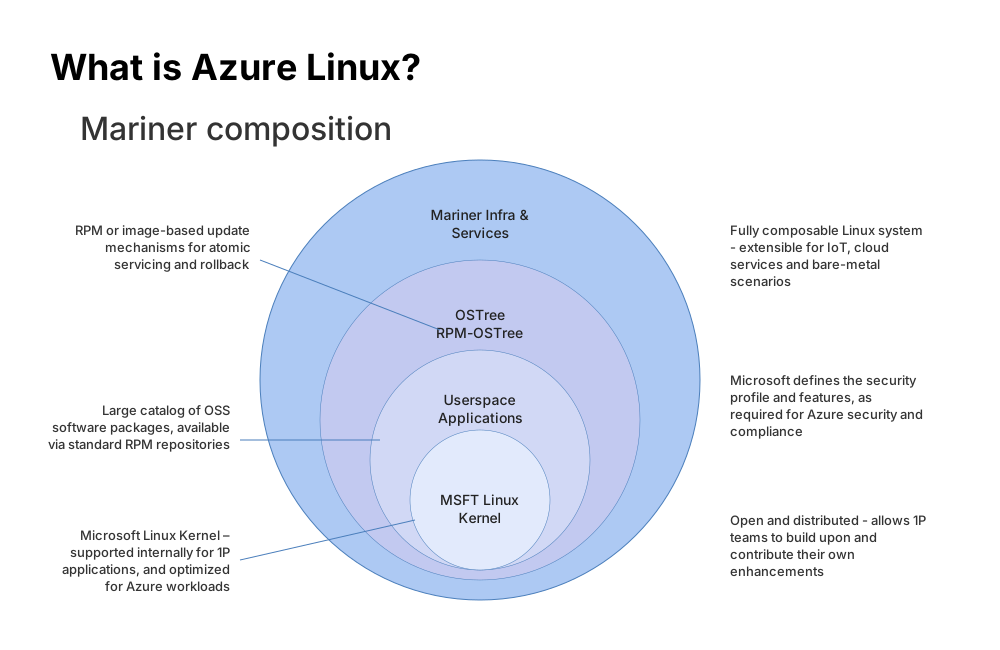
🤔 Hold up…
I found this nifty architectural overview in a 2023 Azure Power Launch session. However, something is a little off in this slide and I’m not even sure I should consider it to be completely correct. Because even though OSTree and rpm-ostree are mentioned as being core components and are a part of the Azure Linux repository, I have yet to find a variant of Azure Linux that ships as an OSTree deployment.
It seems like for the time being that you can either go with an Azure Linux experience that like any other “traditional distro” or take OS Guard if want an immutable experience. Having said that, both routes are an opinionated take on both of those concepts.
The build system is pretty straightforward: it generates RPM packages from spec files and can produce various image formats (ISOs, VHDs, etc.) depending on what you’re deploying. But as we’ll soon see, for us Azure end-users and customers, it’s only really available for use in AKS. Whether you’re running it as a container or a container host, you get a lightweight system that boots fast and presents a smaller attack surface; fewer packages means fewer services to potentially exploit.
When vulnerabilities show up, as they always do, Microsoft will typically create a new image version and gradually make it available to customers. As you might already know, Azure Linux on AKS primarily uses full node image updates via VHD replacements managed through AKS. You can, however, optionally also configure incremental package updates via rpm and tdnf if you prefer to manage updates manually. Microsoft aims for quick turnaround on security fixes, which matters when you’re running production workloads. We’ll dig into exactly how these mechanisms currently work on AKS when we compare Azure Linux’s update model to OS Guard’s approach.
Additionally: Azure Linux 3.0 is FedRAMP-certified, which is relevant if you’re in government or regulated industries! There’s also an option to customize your own image. The team also hosts public community calls and has a roadmap available on GitHub.
Potential gaps in container security
Azure Linux gives us a solid foundation with pretty secure and lean AKS nodes. However, when you’re running Kubernetes, the host OS is only half the story. What about the containerized workloads running on top of it?
Container technology, and Docker engine in particular, brought us declarative deployment patterns and dependency isolation. You can inspect a Containerfile and you can somewhat understand what’s being deployed. The orchestrator manages the lifecycle: which ports are open and closed, which resources get cleaned up when containers shut down, etc… From a security perspective, that was a huge improvement over the ad-hoc server management practices many teams were used to.
If you keep up with some of the tech buzz, you’ll most likly have read that supply chain attacks have also escalated dramatically, in parallel. Take the “XZ Utils” backdoor (CVE-2024-3094) for instance; an attacker gained maintainer trust and inserted malicious code into upstream releases. Downstream container base images inherited that tainted code and remained available on registries long after disclosure. Docker Hub has suffered repeated exploitation as well, with typosquatting attacks that distribute compromised images containing cryptominers and malware.
And that is also is where the limitations of preventative security slowly become apparent. It’s always an uphill battle: Image scanning, signature verification, and registry controls are essential, but they only get you so far. In an ideal world you have ample time to implement security best practices like: scanning and verifying images before deployment, pinning versions and perhaps even signing those artifacts as well. Yet we implicitly trust that whatever lands on disk at runtime is exactly what we built and reviewed. The question is: once a container starts executing, what actually prevents a compromised binary from running?
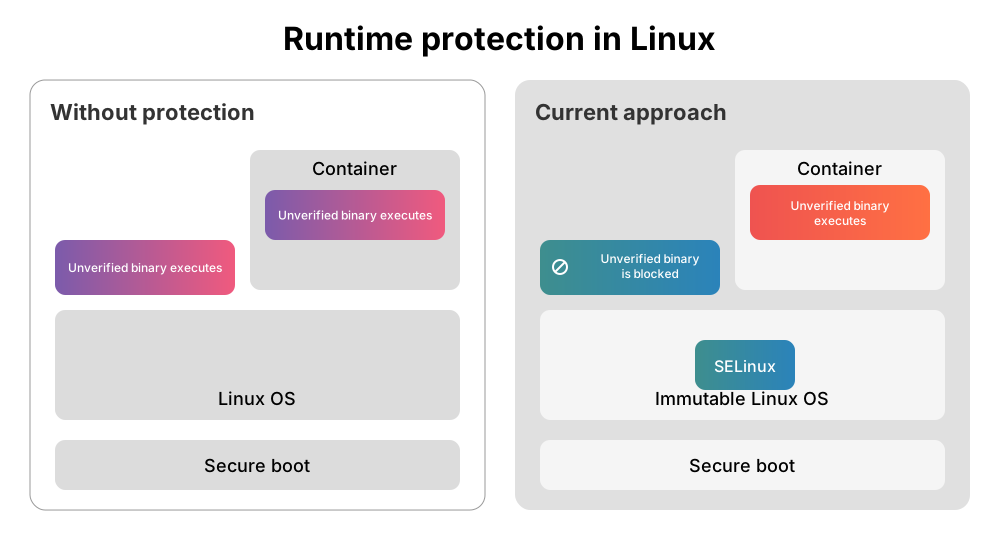
On a Linux OS without additional security controls, any binary can execute without restriction, either on the host or inside a container. However you can layer SELinux policies on the host, and those might block a malicious binary from running directly on the OS. But when that same binary executes inside a container? SELinux host policies don’t automatically apply to the container’s execution context.
Azure Linux with OS Guard
OS Guard solves this by extending integrity verification into container execution contexts. It is a variant of Azure Linux with a leaner image and two opinionated changes: an immutable host OS and runtime code integrity enforcement that verifies which binaries are allowed to execute, both on the host and inside containers. Some of its properties remind me of Azure Confidential Computing’s cryptographic posture: verify first, in order to trust what runs.
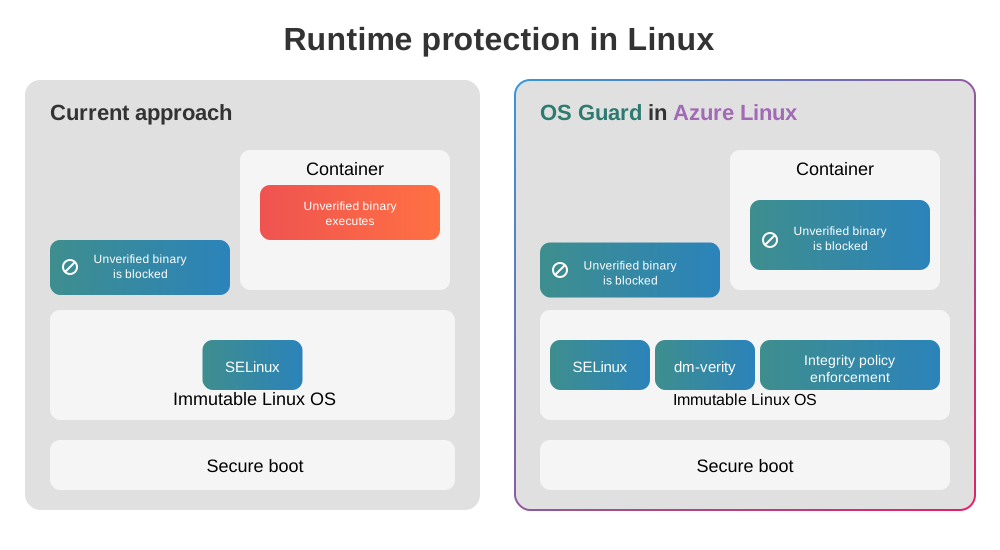
OS Guard adds a couple of interesting twists on top of the Azure Linux foundation:
- Immutability: The
/usrdirectory is mounted as a read-only volume protected by dm-verity, preventing execution of tampered or untrusted code.- ostree and rpm-ostree are not used to achieve immutability!
- Code integrity: OS Guard integrates the Integrity Policy Enforcement (IPE) Linux Security Module to ensure that only binaries from trusted, signed volumes are allowed to execute in user-space.
- IPE is running in audit mode during Public Preview.
- Mandatory access controls: OS Guard integrates with SELinux to limit which processes can access sensitive resources in the system.
- SELinux is operating in permissive mode during Public Preview.
- Integration with Azure security features: Native support for Trusted Launch and Secure Boot provides measured boot protections and attestation.
- Verified container layers: Container images and layers are validated using signed dm-verity hashes. This ensures that only verified layers are used at runtime, reducing the risk of container escape or tampering.
- Sovereign Supply Chain Security: OS Guard inherits Azure Linux’s secure build pipelines, signed Unified Kernel Images (UKIs) and Software Bill of Materials (SBOMs).
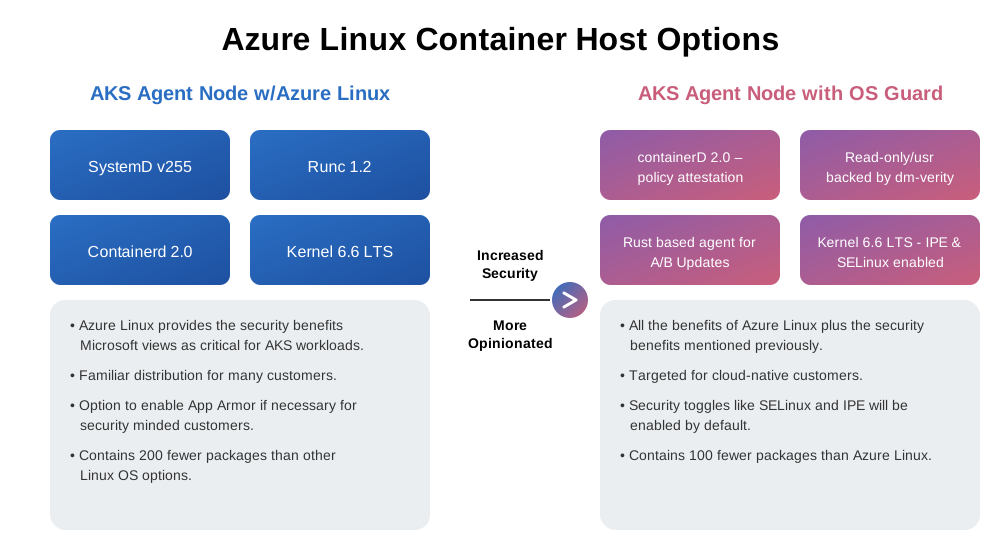
It’s actually an even more slimmed down version of Azure Linux, containing just the packages that are absolutely necessary for running containerized workloads. OS Guard is currently available as:
- Public Preview: An official OS SKU on Azure Kubernetes Service.
- A community image that you can deploy to Azure VMs.
- You’ll have to pull an image with ORAS and then upload it to an Azure Compute Gallery of choice.
💡 Note
Back in May at Build 2025, Mark Russinovich held another one of his insightful “Inside Azure Innovations” sessions, where he showed off Azure Linux with OS Guard. Definitely always worth a watch over on YouTube.
Some time later, at Ignite 2025, he also held a session titled “Cloud Native Innovations”, where he also goes into a little more into the reasoning behind OS Guard.
Deploying OS Guard on AKS
Since Azure Linux with OS Guard is currently in preview, the first step is registering the feature flag on a particular subscription. Do this to a sandbox-like subscription.
az feature show --name AzureLinuxOSGuardPreview --namespace Microsoft.ContainerService --output table

# Name                                                 RegistrationState
# ---------------------------------------------------  -------------------
# microsoft.ContainerService/AzureLinuxOSGuardPreview  NotRegistered

az feature register --name AzureLinuxOSGuardPreview --namespace Microsoft.ContainerService
# Once the feature 'AzureLinuxOSGuardPreview' is registered, invoking 'az provider register -n Microsoft.ContainerService' is required to get the change propagated
# {
#   "id": "/subscriptions/00000000-0000-0000-0000-000000000000/providers/Microsoft.Features/providers/Microsoft.ContainerService/features/AzureLinuxOSGuardPreview",
#   "name": "Microsoft.ContainerService/AzureLinuxOSGuardPreview",
#   "properties": {
#     "state": "Registered"
#   },
#   "type": "Microsoft.Features/providers/features"
# }
With that feature registered, provisioning a cluster is as straightforward as provisioning any other AKS cluster or adding a node pool. The Bicep below uses the Azure Verified Modules wrapper around Microsoft.ContainerService/managedClusters.
The important thing here is to set the following properties in the agent pool profile:
  module managedCluster 'br/public:avm/res/container-service/managed-cluster:0.11.1' = {
  params: {
    // Required parameters
    name: 'csmin001'

    // Enable this for demonstration purposes
    publicNetworkAccess: 'Enabled'

    primaryAgentPoolProfiles: [
      {
        count: 3
        mode: 'System'
        name: 'systempool'
        vmSize: 'Standard_D2ads_v5'
        osType: 'Linux'
        osSKU: 'AzureLinuxOSGuard'
        enableFIPS: true
        enableVTPM: true
        enableSecureBoot: true
        osDiskSizeGB: 74
        osDiskType: 'Ephemeral'
      }
    ]
    // Non-required parameters
    aadProfile: {
      aadProfileEnableAzureRBAC: true
      aadProfileManaged: true
    }
    managedIdentities: {
      systemAssigned: true
    }
  }
}
Notice that Trusted Launch settings (enableVTPM, enableSecureBoot) and FIPS are explicitly enabled, as these are mandatory for OS Guard and align with the security model we discussed earlier.
And all that’s left is to deploy the cluster, pick your favourite mechanism to deploy a Bicep template with and wait for the cluster to come online.
az deployment group create --resource-group osg-rg --template-file main.bicep
By the way, if you’re building a production cluster, consider adding a dedicated user node pool to match the AKS baseline architecture.
The grand AKS OS SKU showdown
🔥 Deprecation notice – March 2026
The AKS team has announced that support for Flatcar Container Linux in Azure Kubernetes Service (preview) will end on 8 June 2026.
On 8 September 2026, Flatcar node images and related preview functionality will be removed from AKS.
Users are advised to migrate their node pools to supported images such as Ubuntu or Azure Linux before this date.
There are currently the following immutable OS variants available for AKS:
- Azure Linux with OS Guard (preview)
- Immutable Azure Linux variant with specialized security configuration
- Combines dm-verity, IPE, and SELinux for defense-in-depth
- Best for security-focused teams operating primarily on Azure
Flatcar Container Linux (preview)- CNCF-governed, vendor-neutral immutable OS
- Fork of CoreOS Container Linux (shares some ancestory with Gentoo and ChromeOS)
- CNCF Incubating project, proven in multi-cloud and on-prem environments
This adds to the existing Ubuntu option and Azure Linux, which raises the natural question: which one should you pick? The AKS engineering team, fortunately, comes to the rescue to provide some clear guidance around this issue:
- Multi-cloud consistency: If you’re running containers across multiple clouds and need predictable behavior during OS updates, Ubuntu
or Flatcar Container Linuxmight the better fit. - Azure-native security: If you’re primarily on Azure and want deep integration with Azure’s security stack (Trusted Launch, FIPS, unified support), Azure Linux or OS Guard make more sense.
💡 Fun facts
Back in 2021, Microsoft announced the acquisition of Kinvolk to accelerate container-optimized innovation. Things went quiet for a while, but the work continued. Flatcar was accepted into the CNCF at incubating level, and at Microsoft Ignite 2025, Azure Kubernetes Service announced support for Flatcar Container Linux in public preview.
All four are fully supported by Microsoft. The choice comes down to your operational model and security requirements. A very nice way of saying: “you need to figure out what works best for you”. They’re not wrong!
Update delivery in Azure Linux vs. OS Guard
One of the most significant operational differences between regular Azure Linux and OS Guard is how updates are delivered. Understanding this distinction is pretty important, because even though AKS is largely a managed service, you are in charge of planning your AKS cluster’s upgrade strategy.
- None: No automatic security updates. You manage all patching manually.
- Unmanaged: OS built-in patching via
unattended-upgrade(Ubuntu) ordnf-automatic(Azure Linux) running nightly around 06:00 UTC. This approach can introduce challenges when untested packages cause issues, requiring tools like kured for reboot management.- Not supported on OS Guard.
- SecurityPatch: AKS-tested security-only patches delivered within 5 days.
- Primarily uses live patching with zero disruption
- Reimaging nodes only when absolutely necessary (60-70% less frequently than NodeImage).
- Follows safe deployment practices and respects maintenance windows.
- Not supported on OS Guard.
- NodeImage: Full VHD refresh with security and bug fixes delivered in 1-2 weeks.
- Always requires node reimage
- Upgrades are supported as long as the cluster’s Kubernetes minor version is in support.
Regular Azure Linux supports two independent update mechanisms: you can update via new node VHD images, via the package manager, or both. The dnf-automatic systemd service runs daily and installs recently published packages from packages.microsoft.com, allowing incremental patching of the system.
Since kernel updates installed via dnf-automatic require a reboot, Microsoft recommends deploying kured to automatically drain and gracefully reboot nodes when a filed called /var/run/reboot-required is present. Alternatively, you could just skip the package manager approach entirely and rely solely on node image updates managed through AKS upgrade channels.
OS Guard, by contrast, only supports NodeImage and None as node OS upgrade channels. The Unmanaged and SecurityPatch channel, which essentially rely on dnf-automatic for incremental package updates, are explicitly incompatible with OS Guard’s immutable /usr directory. When you want to update your OS Guard-based nodes, AKS reimages the entire VM from a new node image via the VM scale set. You can SSH into a node and try running tdnf update, but you’ll hit a wall, since the /usr is read-only. The OS layer is cryptographically signed by Microsoft and must maintain its chain of trust, which is why all updates have to come through complete node image deployments. The image for OS Guard is serviced the same way as Azure Linux, on a monthly cadence.
💡 Note
It’s also worth mentionning there is even supposed to be a Rust-based agent to facilitate A/B updates in OS Guard, but I could not find any information about it!
| Azure Linux | Azure Linux OS Guard | |
|---|---|---|
| Update mechanism | RPM/TDNF package manager OR node images | Node images only |
| Incremental patching | Yes, via dnf-automatic (daily) | Not supported |
| In-place package updates | Yes, via tdnf command | No (immutable /usr) |
| Kernel update method | Via packages (needs kured) or new images | Bundled in node images only |
| Supported upgrade channels | NodeImage, Unmanaged, SecurityPatch, None | NodeImage, None only |
| Update workflow | Flexible: patch incrementally, reimage, or mixed | Full node reimage required |
| Reboot handling | kured recommended for package updates | Managed by AKS with node images |
For even more details, I really recommend taking a closer look at some of these official docs:
- Tutorial: Upgrade Azure Linux Container Host nodes
- Tutorial: Upgrade Azure Linux with OS Guard nodes
- Azure Linux packages and automatic updates
- Troubleshoot package upgrades
OS Guard Components
Let’s dig into the technical components that make OS Guard work. The AKS team maintains a workshop-style site called “AKS Labs” with solid coverage of OS Guard fundamentals. I’ve worked through that material and expanded on the pieces I found most interesting, particularly the implementation details that aren’t always obvious from the high-level docs.
You’re certainly not required to know about all these bits and pieces, but on this blog, that’s exactly what I do! Here’s a short list of subjects that I intend to take a closer look at in this section:
- Trusted Launch
- Integrity Policy Enforcement (IPE)
- dm-verity, fs-verity and EROFS
- Container Runtime Architecture and Policy Attestation
- SELinux
Trusted Launch
It’s been a minute since I last had a look at the state of Trusted Launch in Azure, but like everything on the platform, it’s also in constant flux of updates. So here’s a quick refresher on what Trusted Launch brings to the table.
Trusted Launch guards against boot kits, rootkits, and kernel-level malware. These sophisticated types of malware run in kernel mode and remain hidden from users. This includes some bad stuff like:
- Firmware rootkits: These kits target the software that runs hardware components, storing themselves in firmware that executes during the boot process before the OS starts. Modern systems have moved from hard-coded BIOS to updatable UEFI firmware, which can be targeted remotely.
- Bootloader rootkits: These kits target the Master Boot Record (MBR) or Volume Boot Record (VBR), replacing the bootloader so malicious code loads before the OS.
- Kernel rootkits: These kits add, delete, or modify OS kernel code, allowing them to start automatically when the OS loads.
- Driver rootkits: These kits masquerade as trusted drivers that the OS uses to communicate with system components.
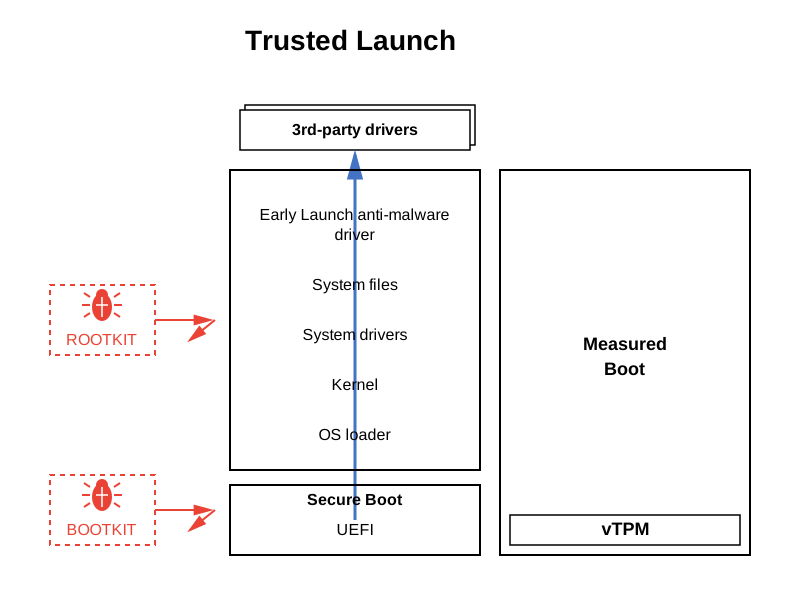
According to the Trusted Launch documentation, when a secure boot Azure VM is deployed, signatures of all the boot components such as UEFI, shim/bootloader, kernel, and kernel modules/drivers are verified during the boot process. Verification fails if the boot component signatures don’t match with a key in the trusted key databases, and the VM fails to boot. This failure can occur if a component is signed by a key not found in the trusted key databases, the signing key is listed in the revoked key database, or a component is unsigned.
💡 Note
Secure Boot is not the same as this other concept called “measured boot”.
In a Secure Boot chain, each step in the boot process checks a cryptographic signature of the subsequent steps. For example, the BIOS checks a signature on the loader, and the loader checks signatures on all the kernel objects that it loads, and so on. Measured boot cryptographically records (measures) storing these “hashes” in a Trusted Platform Module (TPM) to create a tamper-proof log. If any of the objects are compromised, the signature doesn’t match and the VM doesn’t boot.
It seems to me that OS Guard is able to take advantage of a couple advancements that I first saw in the Azure Confidential Computing space. At the very least some of the core enablers of confidential computing are also used to great effect to support OS Guard, mainly “Boot Measurements” and “Trusted Launch”. OS Guard supports measured boot and integrates with Trusted Launch to provide cryptographic measurements of boot components stored in a virtual TPM (vTPM).
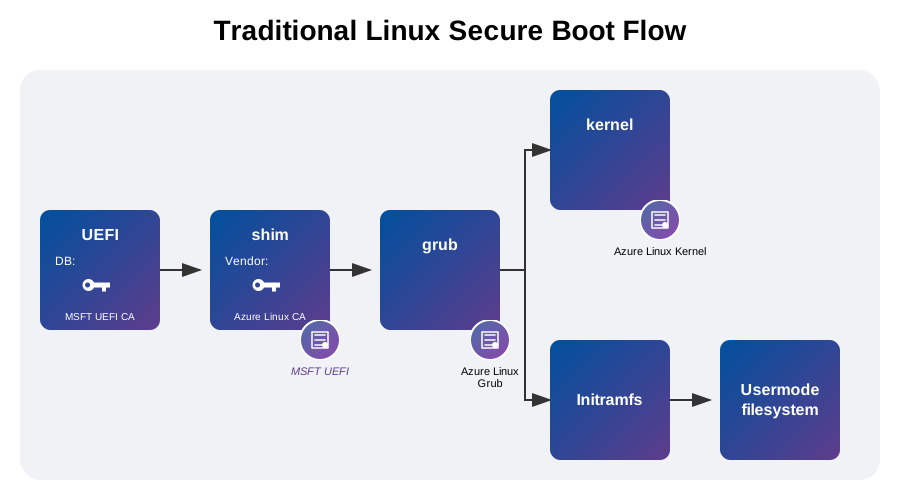
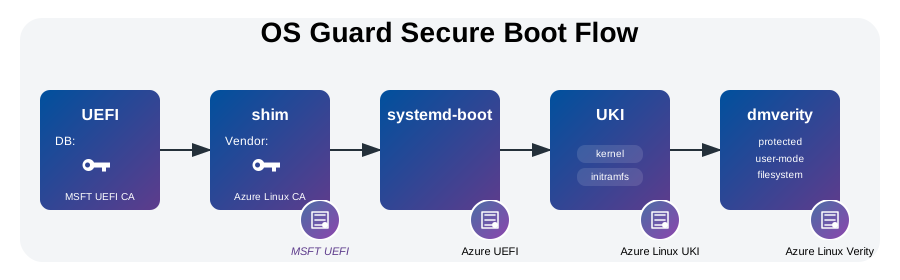
To provide these cryptographic measurements, Microsoft uses a Unified Kernel Image (UKI), which “bundles the kernel, initramfs, and kernel command line into a single signed artifact”. According to the OS Guard documentation: “during boot, the UKI is measured and recorded in the vTPM, ensuring integrity from the earliest stage”. You can even bring your own secure boot keys now, if you want to! It’s also still entirely possible to use Defender for Cloud integration to monitor VMs that do not have Trusted Launch enabled or even remotely validate that your VM booted in a healthy way. Microsoft seems to also have included information on how to establish root of trust with Trusted Launch VMs, it’s a bit hard to find and embedded in the Trusted Launch FAQ docs, but it gets the job done.
When you’re in the realm of Trusted Launch on Azure, you’ll soon learn about the VM guest state (VMGS), which is something specific to trusted launch VMs. It’s an Azure-managed blob and contains the unified extensible firmware interface (UEFI) secure boot signature databases and other security information, so it is a crucial piece of the puzzle. VMs using trusted launch by default reserve 1 GiB from the OS cache or temp disk or NVMe disk based on the chosen placement option for VMGS. For a Standard_D2ads_v5 with a 75 GiB temp disk, that means the maximum osDiskSizeGB you can specify is 74. The lifecycle of the VMGS blob is tied to that of the OS disk.
💡 Note
When deploying a new Azure Linux with OS Guard AKS cluster, you can simply use my Bicep example from earlier or call on
az aks createto create a new cluster. When setting up the cluster, the following parameters are required:…
Secure Boot and vTPM: Ensure Trusted Launch is enabled with
--enable-secure-bootand--enable-vtpm. All Azure Linux with OS Guard images require Trusted Launch to be enabled.Node OS disk type: Ensure you specify
--node-osdisk-typeManagedas your OS Disk Type. Ephemeral OS disks are not supported with Trusted Launch on many VM sizes.
I had to check to see if it was possible to deploy an AKS cluster with an OS-guard based nodepool with ephemeral disks. I tried various combinations with Standard_D2ads_v6 and Standard_D4ads_v6, adjusting osDiskSizeGB across attempts. All of those deployments, however, failed. Switching to Standard_D2ds_v5, Standard_D2ads_v5 and Standard_D2ds_v4 both succeeded without issue. Here is the error I was getting with the NVMe-based v6 and v7 sizes:
{
    "error": {
        "code": "InvalidTemplateDeployment",
        "message": "The template deployment 'deploy' is not valid according to the validation procedure. The tracking id is '00000000-0000-0000-0000-000000000000'. See inner errors for details.",
        "details": [
            {
                "code": "TrustedLaunchIncompatibleWithConfig",
                "message": "Preflight validation check for resource(s) for container service csmin001 in resource group rg-aks-osg failed. Message: Trusted Launch enabled clusters using an image with security-type=TrustedLaunch is not supported for Ephemeral OS disks with VM size Standard_D2ads_v6 and requested OS Disk Size of 64 Gigabytes. Please reduce the OS disk size, upgrade to larger VM size, or disable ephemeral OS. For more information, please refer to https://learn.microsoft.com/en-us/azure/virtual-machines/ephemeral-os-disks#trusted-launch-for-ephemeral-os-disks.. Details: "
            }
        ]
    }
}
For now it seems that the combination of AKS + OS Guard + FIPS + Trusted Launch + ephemeral OS disks fails specifically on VM sizes that use NVMe disk placement (the v6 and later series). Temp disk placement VM sizes (v4/v5 series) seems to work fine!
With that mystery solved we can now turn to the OS itself. We can quite easily inspect the boot loader status of our running OS Guard node. We can use the kubectl debug command to troubleshoot Kubernetes resources by creating temporary debugging environments such as ephemeral containers in running pods, copied pods with modified settings or debug pods on nodes. You could alternatively SSH into a Linux box and access the machine that way. We’ll run a debug container based on azurelinux/busybox. This Busybox container has only 3 Azure Linux packages i.e., filesystem, glibc, and busybox. BusyBox packages together multiple, common UNIX utilities into one executable binary, which is pretty useful when you know you’re about to troubleshoot some stuff.
kubectl get nodes

# NAME                                 STATUS   ROLES    AGE   VERSION
# aks-systempool-32595902-vmss000001   Ready    <none>   26m   v1.33.5

#    A little janky approach to grab the name of the first node..
# 👇 Make sure the first node in that list is an OS Guard node otherwise
#    you could end up somewhere else entirely.
FIRST_NODE=$(kubectl get nodes -o jsonpath='{.items[0].metadata.name}')

DEBUG_IMAGE="mcr.microsoft.com/azurelinux/busybox:1.36"

kubectl debug node/${FIRST_NODE} -it --image=${DEBUG_IMAGE}

# Creating debugging pod node-debugger-aks-systempool-32595902-vmss000001-6ws7s with container debugger on node aks-systempool-32595902-vmss000001.
# All commands and output from this session will be recorded in container logs, including credentials and sensitive information passed through the command prompt.
# If you don't see a command prompt, try pressing enter.
# / #
We’re almost there. When using kubectl debug and targeting a node resource, that new container will run in the host namespaces and the host’s filesystem will be mounted at /host. So if we want to be able to interact with the host’s binaries and files as if we’ve SSH’d into it, we’ll need to change the location of / aka root filepath of this running process. We do this via the chroot command that is present in our Busybox image.
ls

# EULA-Container.txt  dev                 home                lib                 proc                run                 sys                 usr
# bin                 etc                 host                lib64               root                sbin                tmp                 var

chroot /host
ls

# NOTICE.txt  bin  boot  dev  etc  home  lib  lib64  lost+found  media  mnt  opt  proc  root  run  sbin  srv  sys  tmp  usr  var
And now we can run the sudo bootctl status command, which will reveal a bunch of useful information.
System:
      Firmware: UEFI 2.70 (Microsoft 16.50)
 Firmware Arch: x64
   Secure Boot: enabled (user)
  TPM2 Support: yes
  Measured UKI: yes
  Boot into FW: supported

Current Boot Loader:
      Product: systemd-boot 255-24.azl3
     Features: ✓ Boot counting
               ✓ Menu timeout control
               ✓ One-shot menu timeout control
               ✓ Default entry control
               ✓ One-shot entry control
               ✓ Support for XBOOTLDR partition
               ✓ Support for passing random seed to OS
               ✓ Load drop-in drivers
               ✓ Support Type #1 sort-key field
               ✓ Support @saved pseudo-entry
               ✓ Support Type #1 devicetree field
               ✓ Enroll SecureBoot keys
               ✓ Retain SHIM protocols
               ✓ Menu can be disabled
               ✓ Boot loader sets ESP information
         Stub: systemd-stub 255-24.azl3
     Features: ✓ Stub sets ESP information
               ✓ Picks up credentials from boot partition
               ✓ Picks up system extension images from boot partition
               ✓ Measures kernel+command line+sysexts
               ✓ Support for passing random seed to OS
               ✓ Pick up .cmdline from addons
               ✓ Pick up .cmdline from SMBIOS Type 11
               ✓ Pick up .dtb from addons
          ESP: /dev/disk/by-partuuid/0dc99dbc-1712-46dd-b29b-6f8a3371353f
         File: └─/EFI/BOOT/grubx64.efi

Random Seed:
 System Token: set
       Exists: yes

Available Boot Loaders on ESP:
          ESP: /boot/efi (/dev/disk/by-partuuid/0dc99dbc-1712-46dd-b29b-6f8a3371353f)
         File: ├─/EFI/systemd/systemd-bootx64.efi (systemd-boot 255-24.azl3)
               └─/EFI/BOOT/bootx64.efi

No boot loaders listed in EFI Variables.

Boot Loader Entries:
        $BOOT: /boot/efi (/dev/disk/by-partuuid/0dc99dbc-1712-46dd-b29b-6f8a3371353f)
        token: azurelinux

Default Boot Loader Entry:
         type: Boot Loader Specification Type #2 (.efi)
        title: Microsoft Azure Linux 3.0
           id: vmlinuz-6.6.104.2-4.azl3.efi
       source: /boot/efi//EFI/Linux/vmlinuz-6.6.104.2-4.azl3.efi
     sort-key: azurelinux
      version: 3.0.20251021
        linux: /boot/efi//EFI/Linux/vmlinuz-6.6.104.2-4.azl3.efi
      options: root=UUID=48e0529f-f269-4bd1-ad0b-6896b2027e1a ro security=selinux selinux=1 rd.auto=1 net.ifnames=0 lockdown=integrity console=tty0 console=tty1 console=ttyS0 rd.luks=0 rd.hostonly=0 fips=1 net.ifnames=1 ipe.enforce=0 rd
.systemd.verity=1 usrhash=63e91b6afe0cfb2b43e21ed835fc739d573f6e795f3a32c244e6c3b6387eb7b6 systemd.verity_usr_data=UUID=ff6feab9-6cd0-44e5-8eee-400591f8a2af systemd.verity_usr_hash=UUID=c3de2e26-ecfc-4f6f-bcac-581aa146e1a6 systemd.verity_usr_options=,root-hash-signature=/boot/usr.hash.sig pre.verity.mount=3c40b4cf-ab5c-4682-9ee1-4664deaa881e
Using sudo bootctl list gives us a little more info. It shows all available boot loader entries implementing the Boot Loader Specification, as well as any other entries discovered or automatically generated by the boot loader.
type: Boot Loader Specification Type #2 (.efi)
title: Microsoft Azure Linux 3.0 (default) (selected)
id: vmlinuz-6.6.104.2-4.azl3.efi
source: /boot/efi//EFI/Linux/vmlinuz-6.6.104.2-4.azl3.efi
sort-key: azurelinux
version: 3.0.20251021
linux: /boot/efi//EFI/Linux/vmlinuz-6.6.104.2-4.azl3.efi
options: root=UUID=48e0529f-f269-4bd1-ad0b-6896b2027e1a ro security=selinux selinux=1 rd.auto=1 net.ifnames=0 lockdown=integrity console=tty0 console=tty1 console=ttyS0 rd.luks=0 rd.hostonly=0 fips=1 net.ifnames=1 ipe.enforce=0 rd.systemd.verity=1 usrhash=63e91b6afe0cfb2b43e21ed835fc739d573f6e795f3a32c244e6c3b6387eb7b6 systemd.verity_usr_data=UUID=ff6feab9-6cd0-44e5-8eee-400591f8a2af systemd.verity_usr_hash=UUID=c3de2e26-ecfc-4f6f-bcac-581aa146e1a6 systemd.verity_usr_options=,root-hash-signature=/boot/usr.hash.sig pre.verity.mount=3c40b4cf-ab5c-4682-9ee1-4664deaa881e

type: Automatic
title: Reboot Into Firmware Interface
id: auto-reboot-to-firmware-setup
source: /sys/firmware/efi/efivars/LoaderEntries-4a67b082-0a4c-41cf-b6c7-440b29bb8c4f
/sys/firmware/efi/efivars/LoaderEntries-* is created by systemd-boot and lists boot loader entries known to the firmware. If we cat the contents of that file, we get vmlinuz-6.6.104.2-4.azl3.efiauto-reboot-to-firmware-setup which is a boot entry name, pointing to a Linux kernel and an EFI special entry that reboots directly into firmware (BIOS/UEFI) setup. There are actually two types of bootloader entries:
- Plain text entry files in
/loader/entries/*.confdescribing how to boot (kernel/initrd/options). - EFI unified kernel images: single EFI PE files that embed boot metadata (kernel + options + initrd etc.)
- 👆 Hey, we know that Azure Linux is a UKI!
Look back at the kernel command line from the bootctl status output and you’ll spot several dm-verity related parameters: rd.systemd.verity=1, the usrhash, and references to systemd.verity_usr_data and systemd.verity_usr_hash partitions.
These parameters instruct systemd’s early boot process to set up dm-verity protection before the root filesystem is even fully mounted. During the initramfs stage (built with dracut and the systemd-veritysetup module), systemd reads these kernel command-line arguments and configures dm-verity devices on the fly. Specifically, systemd creates the necessary device mapper targets that set up the /usr partition as a dm-verity protected block device, using the cryptographic root hash embedded in the UKI. This happens transparently during boot. By the time the OS is fully operational, /usr is already read-only and cryptographically verified.
💡 Note
Dracut generates an initramfs (initial RAM file system) to bridge the gap between kernel boot and mounting the actual root filesystem. During boot, Dracut loads necessary kernel modules (e.g., RAID, SCSI, encryption), mounts the root device, and performs a pivot_root transition from the initramfs to the real root, finally starting the systemd init process.
The signature verification works as follows: the root-hash-signature=/boot/usr.hash.sig parameter points to a detached signature file that proves Microsoft signed this particular root hash. During dm-verity setup, the kernel verifies this signature using the secondary trusted keyring. Azure Linux enables this capability through specific kernel configurations:
CONFIG_DM_VERITY_VERIFY_ROOTHASH_SIG_SECONDARY_KEYRING=y
CONFIG_INTEGRITY_MACHINE_KEYRING=y
These configurations (source) allow dm-verity to validate root hash signatures against the kernel’s secondary keyring. If the signature doesn’t match or the root hash has been tampered with, the boot process fails. This creates an unbroken chain of trust:
So when you see that UKI file in /boot/efi/EFI/Linux/, you’re looking at a single, signed artifact that bundles the kernel, boot configuration, and the cryptographic anchors for the entire immutable OS. Pretty clever.
Keyrings, what are they?
The Linux kernel maintains several keyrings: in-kernel data structures that hold cryptographic keys used for signature verification. Think of them as trusted key stores that the kernel consults when it needs to verify a signature. The most relevant keyrings for OS Guard are:
- Built-in trusted keyring: Keys compiled directly into the kernel image at build time (via
CONFIG_SYSTEM_TRUSTED_KEYS) - Secondary trusted keyring: Can hold additional keys, including those signed by keys in the built-in keyring
- Machine keyring: Holds keys from the Machine Owner Key (MOK) list, managed via
mokutil - Platform keyring: Populated automatically from UEFI Secure Boot databases
For Azure Linux and OS Guard, Microsoft’s signing certificate (mariner.pem) is compiled directly into the kernel’s built-in keyring.
When dm-verity verifies the /usr partition’s root hash signature, it specifically checks the secondary trusted keyring (per CONFIG_DM_VERITY_VERIFY_ROOTHASH_SIG_SECONDARY_KEYRING). Keys from the built-in keyring can authorize additions to the secondary keyring, creating a trust hierarchy.
Validating the boot process
We can observe this entire boot sequence in action by examining the actual boot logs from an OS Guard node. You can capture serial console output using az serial-console connect for your node’s underlying VM, which provides insight into what happens before even SSH is available. Here’s what the early boot sequence reveals:
The very first messages come from the EFI stub, being the part of the UKI that executes before the kernel even starts:
EFI stub: Loaded initrd from LINUX_EFI_INITRD_MEDIA_GUID device path
EFI stub: Measured initrd data into PCR 9
EFI stub: UEFI Secure Boot is enabled.
This confirms three things:
- the initial RAM disk (initrd) was loaded from a trusted path
- its contents were measured into the TPM’s Platform Configuration Register 9
- and Secure Boot is actively enforcing signature verification.
The chain of trust is already in motion at the earliest stage of kernel execution, before the kernel proper starts. Now, as the kernel initializes, it logs the command line parameters embedded in the UKI and confirms its security posture:
[    0.000000] Command line: root=UUID=48e0529f-f269-4bd1-ad0b-6896b2027e1a ro security=selinux selinux=1 ... ipe.enforce=0 rd.systemd.verity=1 usrhash=63e91b6afe0cfb2b43e21ed835fc739d573f6e795f3a32c244e6c3b6387eb7b6 systemd.verity_usr_data=UUID=ff6feab9-6cd0-44e5-8eee-400591f8a2af systemd.verity_usr_hash=UUID=c3de2e26-ecfc-4f6f-bcac-581aa146e1a6 systemd.verity_usr_options=,root-hash-signature=/boot/usr.hash.sig ...
[    0.000000] Kernel is locked down from command line; see man kernel_lockdown.7
[    0.000000] secureboot: Secure boot enabled
A bit later in the boot sequence, you’ll see this:
[    0.006134] fips mode: enabled
[    0.006197] Unknown kernel command line parameters "usrhash=63e91b6afe0cfb2b43e21ed835fc739d573f6e795f3a32c244e6c3b6387eb7b6", will be passed to user space.
The kernel explicitly states that usrhash is an unknown parameter: it doesn’t know what to do with it, so it passes it through to user space. This is actually a nice illustration of how the UKI’s embedded command line works. Some parameters are for the kernel (security=selinux, fips=1, lockdown=integrity), while others like usrhash, systemd.verity_usr_data, and systemd.verity_usr_options are meant for systemd-veritysetup running in the dracut initramfs. The kernel isn’t confused; it’s working exactly as designed.
Also note fips mode: enabled, which confirms FIPS 140 compliance mode is active on OS Guard nodes.
The kernel then initializes the Linux Security Module (LSM) stack, loading IPE alongside SELinux and other security modules:
[    0.613154] LSM: initializing lsm=lockdown,capability,landlock,yama,safesetid,selinux,ipe,integrity
[    0.613154] landlock: Up and running.
[    0.613154] Yama: becoming mindful.
[    0.613154] SELinux:  Initializing.
As systemd starts in the initramfs environment, it immediately recognizes the dm-verity configuration from those “unknown” parameters:
Welcome to Microsoft Azure Linux 3.0 dracut-102-12.azl3 (Initramfs)!
...
[    2.315313] systemd-fstab-generator[175]: Using verity usr device /dev/mapper/usr.
[    2.390620] systemd[1]: Created slice system-systemd\x2dveritysetup.slice - Slice /system/systemd-veritysetup.
Later in the boot process, after the root device is found and basic filesystem targets are reached, systemd sets up the dm-verity protected /usr partition:
[  OK  ] Finished bootmountmonitor.service - bootpartitionmounter.
         Starting [email protected]…tegrity Protection Setup for usr...
[  OK  ] Found device dev-mapper-usr.device - /dev/mapper/usr.
[  OK  ] Finished [email protected]…Integrity Protection Setup for usr.
[  OK  ] Reached target veritysetup.target - Local Verity Protected Volumes.
You can see systemd-veritysetup runs, the /dev/mapper/usr device becomes available, and only then does the system proceed to mount it. When the filesystem check runs, you’ll see this message:
[    4.564197] EXT4-fs (dm-0): write access unavailable, skipping orphan cleanup
[  OK  ] Mounted sysusr-usr.mount - /sysusr/usr.
[  OK  ] Mounted sysroot-usr.mount - /sysroot/usr.
The write access unavailable message tells us dm-verity managed to successfully locked down the partition. The dm-0 device is mounted read-only, exactly as intended.
💡 Note
dm-0maps to our254:0device-mapper device from thelsblkoutput in the next section where we discuss dm-verity.
What’s particularly interesting is seeing how systemd-veritysetup interacts with the switch-root process. You’ll see the initrd cleanup phase:
[  OK  ] Stopped [email protected]…Integrity Protection Setup for usr.
[  OK  ] Finished initrd-cleanup.service - …aning Up and Shutting Down Daemons.
...
[  OK  ] Finished initrd-udevadm-cleanup-db.service - Cleanup udev Database.
[  OK  ] Reached target initrd-switch-root.target - Switch Root.
         Starting initrd-switch-root.service - Switch Root...
And then after the switch-root to the actual system:
Welcome to Microsoft Azure Linux 3.0!
[  OK  ] Stopped initrd-switch-root.service - Switch Root.
...
         Starting [email protected]…tegrity Protection Setup for usr...
[  OK  ] Finished [email protected]…Integrity Protection Setup for usr.
[  OK  ] Reached target veritysetup.target - Local Verity Protected Volumes.
The systemd-veritysetup service explicitly stops during the initrd cleanup phase, then restarts after switch-root to the real system. The boot logs show the veritysetup.target being stopped, the [email protected] being stopped, and then both being started again in the new environment. This happens because systemd tears down the initrd’s service units during the transition, then the real system’s systemd re-establishes the dm-verity protection using the same kernel command-line parameters and signature verification.
Integrity Policy Enforcement
Integrity Policy Enforcement (IPE), which Microsoft uses for production workloads like Azure Boost, was recently upstreamed in the 6.12 kernel. It leverages the immutable security properties we will explore in the next chapter to verify the integrity and authenticity of all executable code running in user-space. In Azure Linux with OS Guard, this means only trusted binaries from dm-verity protected volumes are allowed to run, including the container layers.
“Integrity Policy Enforcement (IPE) is a Linux Security Module that takes a complementary approach to access control. Unlike traditional access control mechanisms that rely on labels and paths for decision-making, IPE focuses on the immutable security properties inherent to system components. These properties are fundamental attributes or features of a system component that cannot be altered, ensuring a consistent and reliable basis for security decisions.”
IPE achieves this by verifying the integrity and authenticity of all executable code before allowing them to run. It conducts a thorough check to ensure that the code’s integrity is intact and that they match an authorized reference value (digest, signature, etc) as per the defined policy. If a binary does not pass this verification process, either because its integrity has been compromised or it does not meet the authorization criteria, IPE will deny its execution. Additionally, IPE generates audit logs which may be utilized to detect and analyze failures resulting from policy violation.
Microsoft also maintains a microsoft/ipe GitHub project, which contains a bit more practical information about how IPE functions. This is also worth having a closer look as I think it neatly ties OS Guard’s technology choices together.
📖 Docs
“Integrity Policy Enforcement (IPE) is a Linux Security Module that takes a complementary approach to access control. Unlike traditional access control mechanisms that rely on labels and paths for decision-making, IPE focuses on the immutable security properties inherent to system components. These properties are fundamental attributes or features of a system component that cannot be altered, ensuring a consistent and reliable basis for security decisions.”
The documentation clarifies two concepts that define how IPE operates:
- System components: In IPE’s context, these primarily refer to files or the devices they reside on, though the definition is flexible enough to accommodate new elements as the system evolves.
- Immutable properties: These are characteristics like a file’s origin that remain constant throughout its lifetime and cannot be altered.
The dm-verity and fs-verity protections, which we will look at in a bit, become the foundation for IPE policy decisions. Since these integrity mechanisms can’t be disabled once established, they qualify as immutable properties the system can rely on. Policies can specify trust based on a couple of verifiable properties:
- Checking dm-verity root hash signatures.
- Validating fs-verity digests.
- Verifying files originate from protected volumes or the initramfs.
This specifically targets tampering with user-space executable code after kernel boot, including kernel modules loaded via modprobe or insmod. If an untrusted binary is downloaded with its dependencies (loader, libc, etc.), the system prevents execution. Protection covers threats from actors with physical or network access, compromised internal infrastructure, malicious or compromised end users, and remote attackers. However, it doesn’t extend to malicious authorized developers with signing certificates, compromised development tools, or kernel-level exploits. There’s a hard security boundary between userspace and kernelspace.
IPE’s rwo operating modes are “permissive” and “enforced”. In permissive mode, all events are checked and policy violations are logged without enforcement, allowing policy testing before deployment.
💡 Note
For Azure Linux with OS Guard Public Preview IPE is in Audit mode, with plans to move to Enforce mode in GA.
The default mode is enforce, and can be changed via the kernel command line parameter ipe.enforce=(0|1), or the securityfs node /sys/kernel/security/ipe/enforce.
Policy.pol
I was curious to see if I could find the the default policy for OS Guard… And sure enough, that same microsoft/azurelinux repo contains the azl-ipe-boot-policy.pol file.
policy_name=azl_ipe_boot_policy policy_version=0.0.1

DEFAULT action=ALLOW

DEFAULT op=EXECUTE action=DENY
op=EXECUTE boot_verified=TRUE action=ALLOW
op=EXECUTE dmverity_signature=TRUE action=ALLOW
IPE’s policy engine is also designed in a way that it makes it obvious to a human of how to investigate a policy failure. Each line is evaluated in the sequence that it is written, so the algorithm is very simple to follow for humans to recreate the steps and could have caused the failure.
Anyway, you could interpret the azl_ipe_boot_policy as follows, let’s assume we want to execute a binary file:
- Global default (fallback):
DEFAULT action=ALLOWallows all operations (FIRMWARE, KMODULE, KEXEC_IMAGE, etc.) - EXECUTE operation default (fallback):
DEFAULT op=EXECUTE action=DENYdenies all execution operations by default - EXECUTE rules (evaluated in order):
boot_verified=TRUEallow files from initramfs during early bootdmverity_signature=TRUEallow files from any dm-verity volume with signed roothashes
IPE evaluates rules top-to-bottom, stopping at the first matching rule. I couldn’t quite figure out of the DEFAULT rules were also part of the evaluation order, because that would make the above always evaluate to allow. However, based on the examples in the kernel docs you can tell that DEFAULT is indeed a fallback and happens when no rules match. The documentation doesn’t explicitly state the precedence, but the logical interpretation is that operation-specific DEFAULTs override the global DEFAULT for a specific operation.
dm-verity
We’ve mentioned it a bunch up until this point, but let’s get a little more specific for a bit. dm-verity is a Linux kernel feature that is very widely used, you can think about it as a read-only block-device integrity checker.
A quick online search will show that it’s being used in Android to protect its system partition. It’s main job is to provide transparent integrity checking of block devices and in doing so helps prevent persistent rootkits that can hold onto root privileges and compromise devices. To use this tech, you must have a secure boot mechanism. If you don’t, then it’s entirely possible for an attacker to take over the boot process and thus work around dm-verity.
Earlier we saw dm-verity being configured in the boot logs. Now let’s examine the actual partition layout on an OS Guard node. Looking at the output below, you’ll notice the 1G data partition (nvme0n1p3) paired with a 128 megabyte hash partition (nvme0n1p4), both mapping to the same device-mapper device (254:0) mounted at /usr. This separation is intentional because the hash tree must be stored separately from the data it verifies to prevent an attacker from tampering with both simultaneously. However, as we’ll see in a moment, this partition structure raises some interesting questions about how updates actually work in practice.
sudo lsblk
# NAME        MAJ:MIN RM  SIZE RO TYPE  MOUNTPOINTS
# loop0         7:0    0  6.1M  1 loop
# loop2         7:2    0 23.3M  1 loop
# loop3         7:3    0 64.8M  1 loop
# sr0          11:0    1  756K  0 rom
# nvme0n1     259:0    0  128G  0 disk
# |-nvme0n1p1 259:1    0  512M  0 part  /boot/efi
# |-nvme0n1p2 259:2    0  100M  0 part  /boot
# |-nvme0n1p3 259:3    0    1G  0 part
# | `-usr     254:0    0    1G  1 crypt /usr
# |-nvme0n1p4 259:4    0  128M  0 part
# | `-usr     254:0    0    1G  1 crypt /usr
# |-nvme0n1p5 259:5    0 63.1G  0 part  /var/lib/kubelet
# |                                     /
# `-nvme0n1p6 259:7    0 63.1G  0 part
# nvme1n1     259:6    0  110G  0 disk
The partition layout actually reveals a bit about OS Guard’s architecture, though nothing we haven’t seen so far. But let’s break it down:
dm-verity protected /usr: The most important detail is the device-mapper device 254:0 with type crypt mounted at /usr. This is dm-verity providing cryptographic integrity verification. Notice that two physical partitions feed into this single logical device:
nvme0n1p3(1G) - Contains the actual/usrfilesystem datanvme0n1p4(128M) - Contains the dm-verity hash tree used to verify the data partition
Both partitions are marked with the └─usr prefix, indicating they’re components of the same dm-verity volume.
- A/B Partition Layout: The two identically-sized 63.1G partitions (
nvme0n1p5andnvme0n1p6) follow an A/B naming scheme… If you dig through the boot logs, you’ll see references toroot-aandusr-hash-a, which strongly suggests a correspondingroot-bexists. Currently,nvme0n1p5is active (mounted as/and/var/lib/kubelet), whilenvme0n1p6sits unmounted. This A/B layout is common in immutable Linux distributions for atomic updates with rollback capability. However, in the AKS context,NodeImageupdates work through VMSS reimaging. As far as I know the entire VM gets replaced with a fresh VHD rather than writing to the inactive partition. So while the partition structure supports A/B updates (there is even supposed to be a Rust-based agent for A/B updates), whether that mechanism is actually used in AKS remains unclear to me. - Writable Root Filesystem: The root filesystem at
/lives on the regularnvme0n1p5partition, not on dm-verity. This is where logs, container state, and runtime configuration live. The immutability guarantee applies specifically to/usr, not the entire filesystem.
If an attacker compromises the writable partitions, they still can’t modify /usr without breaking dm-verity’s cryptographic chain of trust. As we saw in the Trusted Launch section, the dm-verity root hash signature (/boot/usr.hash.sig) is verified during boot using the kernel’s keyring system with CONFIG_DM_VERITY_VERIFY_ROOTHASH_SIG_SECONDARY_KEYRING enabled.
Keep in mind that “immutable” doesn’t mean you can’t write anything anywhere; that would make the system completely useless. You still have writable partitions for logs, application data, and configuration that needs to change at runtime. What’s immutable is the core OS itself (that /usr partition protected by dm-verity), not the entire filesystem. The system wouldn’t function without somewhere to persist state.
Trying to write to the protected partition will cause that operation to fail. We can test this quite easily by doing:
echo "hi" > /usr/hello.txt
# bash: /usr/hello.txt: Read-only file system
While /usr is immutable, writable partitions like /opt or /var remain accessible. Let’s test that by downloading and executing a binary from these writable locations.
# Download Neovim, btw
curl -LO https://github.com/neovim/neovim/releases/latest/download/nvim-linux-x86_64.tar.gz

# Extraction succeeds because /opt is writable
sudo tar -C /opt -xzf nvim-linux-x86_64.tar.gz

# Write something using Neovim.
/opt/nvim-linux-x86_64/bin/nvim /hello.txt

cat /hello.txt
# World!
The binary extracted to /opt executes successfully, but this is only because IPE is currently running in audit mode during Public Preview. This execution would have been blocked if IPE were in enforce mode. Though the success here only reveals that dm-verity alone doesn’t prevent execution of untrusted code; it only protects the core OS from modification.
Let’s verify that IPE logged this execution as a policy violation. We can inspect the IPE audit logs using journalctl:
journalctl -g 'IPE_ACCESS.*path="/opt/nvim-linux-x86_64/bin/nvim"' | tail -n 30
You should see output similar to:
aks-nodepool1-28127405-vmss000000 audit[1204583]: IPE_ACCESS ipe_op=EXECUTE ipe_hook=BPRM_CHECK enforcing=0 pid=1204583 comm="bash" path="/opt/nvim-linux-x86_64/bin/nvim" dev="nvme0n1p5" rule="DEFAULT op=EXECUTE action=DENY"
aks-nodepool1-28127405-vmss000000 audit[1204583]: IPE_ACCESS ipe_op=EXECUTE ipe_hook=MMAP enforcing=0 pid=1204583 comm="nvim" path="/opt/nvim-linux-x86_64/bin/nvim" dev="nvme0n1p5" rule="DEFAULT op=EXECUTE action=DENY"
The enforcing=0 field confirms IPE is in audit mode, logging the violation without blocking execution. The rule="DEFAULT op=EXECUTE action=DENY" shows that IPE detected this binary doesn’t meet the policy requirements (it’s not from a dm-verity protected volume or signed container layer). When OS Guard reaches GA and IPE moves to enforce mode, this execution would be blocked.
This showcases that while dm-verity protects /usr from tampering, IPE adds an execution policy layer. It ensures only verified binaries can run, even from writable partitions. We’ll examine how these technologies complement each other in more detail when we cover IPE. You will start to notice that this will become a recurring theme throughout the remainder of our tests..
Also, dm-verity enforces read-only semantics at the kernel level. Any attempt to write to a protected block device is rejected. This approach to immutability distinguishes it from other integrity mechanisms and ensures the system state can’t drift from its verified baseline, whether the system is running or powered off.
The verification mechanism operates at the block device layer, beneath the filesystem itself. dm-verity constructs a Merkle tree structure where each 4KB data block has a corresponding SHA256 hash. These hashes themselves are grouped into blocks and hashed again, forming successive tree levels that eventually converge to a single root hash. This hierarchical design means you only need to trust one value (the root hash) to cryptographically verify the entire volume. Modifying any data block would require recomputing the entire hash chain, which is computationally infeasible without the signing key.
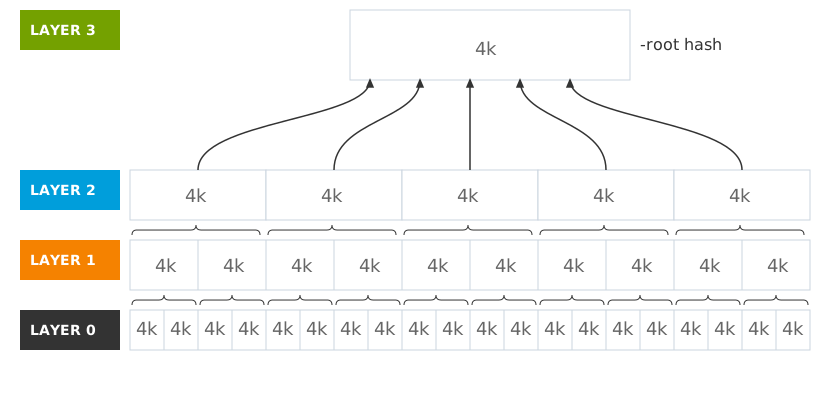
This root hash is what ties dm-verity back to the Trusted Launch boot chain we examined earlier. Remember the root-hash-signature=/boot/usr.hash.sig kernel parameter and the kernel configurations we saw? That signature file contains Microsoft’s cryptographic signature of this root hash, and the kernel verifies it during boot using keys in the kernel’s keyring system before mounting /usr. If verification fails (whether the signature is invalid or the root hash doesn’t match the hash tree), the device generates an I/O error and refuses to mount the filesystem. It appears as if the filesystem is corrupted, which prevents the system from booting with tampered binaries.
💡 Note
dm-verity exclusively provides integrity verification.
It is not in charge of performing any sort of encryption.
In OS Guard’s architecture, dm-verity operates as a device-mapper target that sits between the filesystem and the physical storage. When systemd-veritysetup establishes the dm-verity device during boot (as we saw in the boot logs earlier), it configures the kernel to verify each block against the hash tree before allowing reads.
The verification happens on-demand: when a process tries to read from /usr, the kernel computes the hash of the requested block and walks up the Merkle tree to the root hash. If any hash in that chain doesn’t match (whether from tampering, corruption, or bit rot), the read fails with an I/O error. The filesystem appears corrupted because, from dm-verity’s perspective, it is.
This on-demand verification is what makes dm-verity practical for production use. Rather than hashing the entire partition at boot (which would take ages for large filesystems), it verifies only the blocks you actually access. The first read of a block incurs the hash computation cost; subsequent reads hit the page cache. Combined with the hash tree structure, this keeps the overhead minimal while maintaining cryptographic guarantees.
fs-verity
fs-verity is a support layer that filesystems can hook into to support transparent integrity and authenticity protection of read-only files. It is similar to dm-verity but works on files rather than block devices. But if dm-verity handles volume-level integrity so well, why does fs-verity exist in OS Guard at all?
That’s because it’s able to work at a much more granular level; dm-verity takes a very all-or-nothing approach, where you protect an entire block device or nothing at all. That’s perfect for an immutable OS partition, but what about systems that need selective file protection? What if you want to verify specific executables or configuration files while keeping the rest of the filesystem writable?
Well, turns out this is exactly problem that fs-verity solves. It provides cryptographic integrity guarantees at the individual (read-only) file level, letting you pick exactly which files to protect. Common use cases include:
- protecting application binaries from tampering on otherwise mutable systems
- ensuring configuration files remain unchanged after deployment,
- allowing package managers to verify downloaded files before installation.
Android has been using uses fs-verity extensively for APK verification for quite some time, and Chrome OS relies on it for its verified executables.
OS Guard’s use of fs-verity
In the context of OS Guard though, it looks like fs-verity plays a limited role today. Since dm-verity really seems to handle most of the heavy lifting: the /usr partition and container layers are already protected at the volume level. The IPE execution policy is compiled directly into the Unified Kernel Image we examined in the Trusted Launch section. To top it all off, the UKI is cryptographically signed by Microsoft, so the IPE policy itself is immutable. You can’t modify it at runtime without breaking the signature chain. If I understand this correctly, that would mean policy changes require deploying new node images through AKS and cannot be applied by making changes to OS Guard’s runtime configuration. (Rolling out new AKS images on behalf of Microsoft is not something I would be able to do anyways! 🙂)
So to reiterate, everything that needs protection is already on dm-verity volumes. The base OS sits on the protected /usr partition, and container images use signed dm-verity volumes managed by the EROFS-snapshotter. The workload content is all known at build time (base image) or controlled through the signed container image supply chain. There’s no scenario currently where you’d need to protect files on writable partitions, because writable partitions don’t contain executable code that IPE would authorize.
💡 Note
The upstream containerd EROFS-snapshotter documentation describes fs-verity support for per-file integrity verification of container layers. However, OS Guard doesn’t use fs-verity for container layers.
Instead, Azure Linux’s OS Guard configuration explicitly enables dm-verity for the EROFS-snapshotter (
enable_dmverity = true), providing volume-level protection rather than per-file verification. When I searched through the Azure Linux repository, it revealed no fs-verity related kernel configurations or containerd settings. For me this brings home the point that OS Guard’s integrity model is focussed mainly on dm-verity, not fs-verity, even for container layers where fs-verity would technically be an option. I’m guessing this is for performance reasons, as stated in the snapshotter docs.
Microsoft did mention that IPE’s policy language does support fs-verity for extensibility reasons:
🗣️ Quote
“The IPE policy can be extended to meet customer needs, such as narrowing the scope to only specific dm-verity volumes or allowing specific files by fs-verity digest.”
Whether this extensibility becomes practical will depend on future tooling. Since you can’t modify the IPE policy at runtime on an immutable system, leveraging fs-verity would require Microsoft to ship alternative node images with different policies, or provide some mechanism for policy customization at image build time.
That said, I’d argue that understanding fs-verity’s design is valuable for a couple of reasons: seeing how it complements dm-verity architecturally, and understanding what extensibility options exist if Microsoft adds tooling support in the future.
How fs-verity Works
The mechanism itself is similar to dm-verity. Both build Merkle trees of cryptographic hashes. But fs-verity operates at the filesystem layer rather than the block device layer. When you enable fs-verity on a file, the filesystem appends the Merkle tree and metadata directly to the file itself. The root hash (also called the “file digest”) becomes the file’s cryptographic identity. Tamper with any byte in the file, and the digest won’t match.
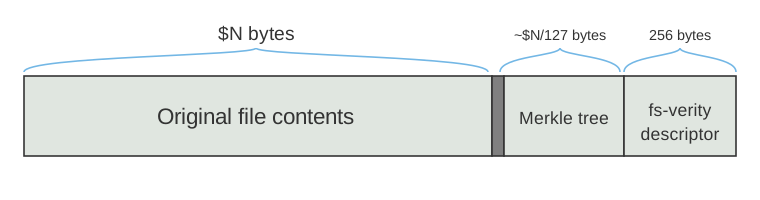
The verification happens transparently. Once a file is marked for fs-verity protection via FS_IOC_ENABLE_VERITY, any subsequent read operation triggers hash verification. The kernel reads the data, computes its hash, walks up the Merkle tree to the root, and compares it against the stored file digest. If verification fails, the read returns an I/O error. The file becomes effectively immutable. You can’t modify it without breaking the hash chain.
As of Linux 6.6 (the kernel version OS Guard uses), fs-verity works on ext4, f2fs, and Btrfs. The filesystem must support the feature at the superblock level, and files must be marked read-only before enabling fs-verity protection. The immutability is enforced by the kernel: even root can’t modify a fs-verity protected file without disabling the feature first (which requires unmounting the filesystem).
The signature verification model differs from dm-verity; while dm-verity always requires a detached signature file that’s verified at device setup time, fs-verity offers two modes:
- Built-in signatures: The signature is appended to the file itself during the
FS_IOC_ENABLE_VERITYcall. The kernel verifies it against keys in the.fs-veritykeyring (loaded viakeyctloradd_key()).- This is similar to how kernel module signing works.
- Userspace verification: The file digest is exposed via
FS_IOC_MEASURE_VERITY, and a userspace program handles signature verification.- This gives you more flexibility. You could verify against a TPM, a hardware security module, or a custom trust model.
The kernel docs describe fs-verity as complementary to dm-verity: it’s “meant to work in conjunction with trusted userspace code (e.g., operating system code running on a read-only partition that is itself authenticated by dm-verity).” The architecture assumes you’re running on a system where the base OS is already trusted. Otherwise, a compromised kernel could simply disable fs-verity checks.
IPE Integration
IPE supports fs-verity integration, as the properties exist in the kernel. However, they’re currently not in OS Guard’s default policy. According to the IPE documentation, it supports two properties for fs-verity files:
fsverity_digest=DigestName:HexadecimalStringidentifies files by their verity digest. Supported digest algorithms aresha256andsha512.- Used to allow specific files by their cryptographic identity.
fsverity_signature=(TRUE|FALSE)authorizes files that have been verified by fs-verity’s built-in signature mechanism.- Signature verification relies on keys stored in the
.fs-veritykeyring.
- Signature verification relies on keys stored in the
Both properties are controlled by the kernel config option CONFIG_IPE_PROP_FS_VERITY, and fsverity_signature additionally requires CONFIG_FS_VERITY_BUILTIN_SIGNATURES to be enabled.
These two properties serve completely different use cases:
- The
fsverity_digestproperty is for files you know at policy build time.- You’d use it when you want to authorize specific binaries that you’ve measured in advance. But if you already know the digests when building the policy, you could just put those files on the dm-verity volume instead. This property makes more sense for very specific scenarios, like authorizing a handful of management tools that live on writable partitions but are deployed with the base image.
- The
fsverity_signatureproperty is the interesting one for runtime scenarios.- Instead of hardcoding specific file digests in the policy, you authorize any file with a valid signature from a trusted signing authority. The policy rule is simple:
op=EXECUTE fsverity_signature=TRUE action=ALLOW. The kernel verifies signatures against keys in the.fs-veritykeyring (loaded at boot or viaadd_key()).
- Instead of hardcoding specific file digests in the policy, you authorize any file with a valid signature from a trusted signing authority. The policy rule is simple:
With this signature-based model, you trust signing authorities rather than specific file hashes. Files can be downloaded and installed at runtime without knowing their digests in advance. Just trust the signing key. If someone tampers with a file, the hash tree verification fails and reads return I/O errors. If someone replaces it with a different file (even a validly signed one from a different authority), IPE blocks execution because the signature won’t verify against your keyring.
I read online that Android uses a conceptually similar trust model (trust app publishers, not individual APK hashes), but the implementation is completely different. Android’s APK verification happens in userspace via PackageManager at install time, not at the kernel level during execution. Android does use fs-verity for integrity verification (the Merkle tree hashing), but not for signature-based execution authorization like IPE does. The signature checking and execution control happen through different mechanisms (SELinux policies and UID-based permissions). So while both systems avoid enumerating every file hash in a policy, it seems IPE enforces trust at the kernel layer during execution, whereas Android’s signature verification is a userspace install-time check.
💡 Note
If you’re digging into the original fs-verity design, this talk by Michael Halcrow & Eric Biggers at the Linux Security Summit North America 2018 is worth a watch. Just keep in mind that it presents an early design proposal. Some details changed between that conceptual phase and the final implementation that you can read about in the kernel docs.
For example, the fs-verity descriptor evolved from the ~100 byte conceptual format shown in those slides to a fixed-size UAPI structure with padding and reserved fields for ABI stability.
EROFS
Enhanced Read-Only File System (EROFS) is briefly mentioned at the very end of the announcement but the team mentioned that they are actively working with the upstream containerd community to contribute code-integrity for OCI container support using the EROFS-snapshotter.
EROFS supports compression and deduplication, and is optimized for read performance. The primary difference between EROFS and other compressed file systems is that it supports in-place decompression. Compressed data is stored at the end of blocks, so that it can be uncompressed into the same page. In an EROFS image, more than 99% of blocks are able to use this scheme, thus eliminating the need to allocate extra pages during read operations. EROFS images don’t have to be compressed. When using compression, however, images are around 25% smaller on average. At the highest levels of compression, images can be up to 45% smaller.
Based on the OS Guard Code Integrity variant’s configuration files, EROFS is used as the container layer filesystem format. The kernel is configured to require dm-verity signatures via the dm_verity.require_signatures=1 parameter, and the containerd configuration enables dm-verity for the EROFS-snapshotter. We’ll examine the details of this integration, and its relationship to upstream containerd, in the Container Runtime section below.
Container Runtime Architecture and Policy Attestation
Next item on the list! It’s the containerd 2.0 with the EROFS-snapshotter, which looks like it’s is a very important piece to OS Guard’s container integrity model. There’s not a lot of info out on this yet, so a lot of it is pure speculation on my part. However, it’s clear from the demo’s we’veseen that OS Guard’s security model goes beyond kernel-level enforcement and extends into the container runtime stack itself. The architecture includes several important components that work together to validate and attest to container integrity at runtime.
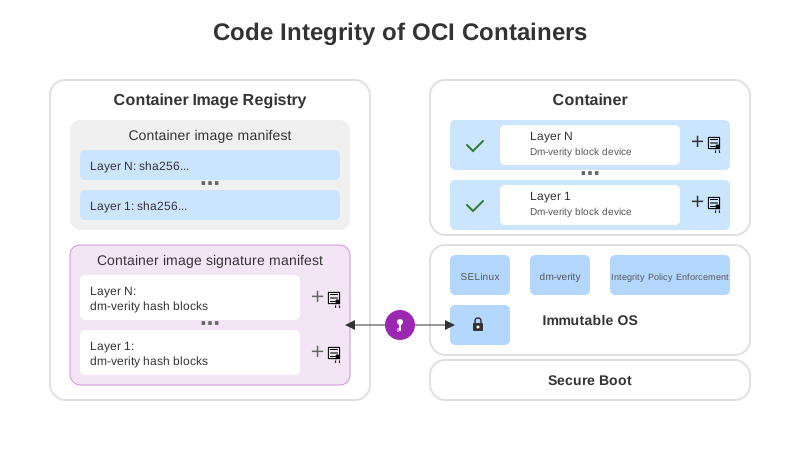
The EROFS-snapshotter is part of upstream containerd and supports fs-verity for per-file integrity. However, the dm-verity integration (enable_dmverity = true) seen in the Azure Linux OS Guard containerd configuration appears to be downstream work. I came to this conclusion because in the the upstream containerd EROFS documentation, it explicitly lists “DMVerity support” as a TODO item. I have a feeling that, at the moment, the dm-verity layer signature verification demonstrated at Ignite 2025 used Microsoft-specific patches or extensions, which have not yet been merged upstream.
So how does this translate into runtime behavior? Again, I have to be completely honest, I’m not entirely sure but I can make an educated guess. Based on what we can observe from Mark Russinovich’s “Cloud Native Innovations” demo at Microsoft Ignite 2025 and the kernel+containerd configurations in Azure Linux’s repo, the verification process appears to work something like this:
- The container image manifest and signature manifest are fetched from the registry
- containerd verifies the signature manifest against keys trusted by the OS (set during secure boot)
- Each layer is checked against its dm-verity hash blocks before being mounted
- The IPE kernel module validates that execution can only occur from verified, signed layers
- If any check fails, the container fails to start and an audit event is logged
However, the exact implementation details aren’t publicly documented yet. What I can confirm is that OS Guard-compatible images use a specific OCI image manifest structure. Each layer object in the manifest contains both a specialized media type and an annotation that work together to enable dm-verity verification:
{
  "schemaVersion": 2,
  "mediaType": "application/vnd.oci.image.manifest.v1+json",
  "artifactType": "application/vnd.oci.mt.pkcs7",
  "config": {
    "mediaType": "application/vnd.oci.empty.v1+json",
    "digest": "sha256:44136fa355b3678a1146ad16f7e8649e94fb4fc21fe77e8310c060f6...",
    "size": 2,
    "data": "e30="
  },
  "layers": [
    {
      "mediaType": "application/vnd.oci.image.layer.v1.erofs.sig",
      "digest": "sha256:da306155268cf7d87e46399363f3374fad91f919d1f9dd82dc20f...",
      "size": 3075,
      "annotations": {
        "org.opencontainers.image.title": "signature_for_layer_52bc9da4bf6867..."
      }
    }
  ],
  "subject": {
    "mediaType": "application/vnd.docker.distribution.manifest.v2+json",
    "digest": "sha256:ab97e395f8f762f4bff655c02532636bba3e3df91d145d616b254a23..."
  }
}
There’s a couple of things to learn from this:
- Artifact Type:
application/vnd.oci.mt.pkcs7identifies this as a PKCS#7 (CMS) signed manifest. This is the same signature format the Linux kernel uses natively for dm-verity root hash verification - Media Type:
application/vnd.oci.image.layer.v1.erofs.sigindicates this is an EROFS layer with dm-verity signature data embedded - Annotation:
org.opencontainers.image.titlewith a value starting withsignature_for_layer_links the layer to its corresponding dm-verity root hash signature - Subject Reference: Points back to the original container image manifest this signature manifest validates
Now, searching GitHub for either vnd.oci.mt.pkcs7 or vnd.oci.image.layer.v1.erofs.sig returns exactly zero results. These media types don’t appear in any public repositories yet. That once again leads me to believe that this is either brand new work that hasn’t been open-sourced yet, or it’s still part of Microsoft’s downstream patches that haven’t made their way upstream to the OCI spec or containerd project. Either way, I think it’s safe to assume that we’re looking at bleeding-edge stuff that isn’t widely documented or deployed outside of OS Guard.
The use of PKCS#7 (aka CMS, or Cryptographic Message Syntax per RFC 5652) could be a deliberate choice, too. This is the same signature format the kernel’s dm-verity verification uses natively via CONFIG_DM_VERITY_VERIFY_ROOTHASH_SIG. I’m just going to assume for now that by using PKCS#7, the container layer signatures integrate directly with the kernel’s existing signature verification infrastructure… That’s the same trust chain that validates the host’s /usr partition during boot. Perhaps we’ll be ablet to add signing keys can be enrolled through the platform keyring (from UEFI Secure Boot), the Machine Owner Key (MOK), or the kernel’s secondary trusted keyring.
Without these specific manifest properties, containerd won’t know how to locate and verify the cryptographic hash blocks, and the container will fail verification during startup.
Getting containers to work
With all this info I began wondering how I’d have to sign my containers right now to run them on OS Guard… But I think it boils down to how the IPE enforcement mode is currently configured.
During Public Preview, IPE runs in audit mode (ipe.enforce=0). This means:
- Unsigned containers will run normally, just like on standard AKS nodes
- Policy violations are logged to the audit subsystem but not enforced
- You can observe what would be blocked by checking
journalctl -g 'IPE_ACCESS'
If IPE enforcement is enabled (ipe.enforce=1), the rules will change entirely. Only containers with properly signed dm-verity layers would execute. This would mean each layer needs:
- Conversion to EROFS format
- A dm-verity hash tree generated
- A PKCS#7 signature of the dm-verity root hash
- An OCI referrer manifest linking signatures to layers (like the structure shown above)
As of this writing, Microsoft hasn’t published comprehensive tooling for generating these layer signatures yourself. (Or at the very least, I have not found it yet.) We know from the containerd configuration that the EROFS-snapshotter handles the runtime verification, but the signing side (how to create OS Guard-compatible images with your own keys) remains undocumented.
Could Notation Be Involved?
I started wondering about a potential connection with existing tools. Primarily because Microsoft already has well-documented tooling for container image signing: the Notary Project with its notation CLI. There’s even official documentation showing how to integrate Notation with Azure Key Vault for signing container images stored in Azure Container Registry. So when I saw that OS Guard requires signed dm-verity layers, my first thought was: could there be a hook here? Maybe Notation is involved in some part of the signing pipeline?
After digging through what’s publicly available, it doesn’t look like there’s a direct connection, at least not in the way I initially imagined. But that led me to another question: doesn’t Notation already provide these integrity guarantees? When you sign an OCI artifact with Notation, the manifest contains hashes of each layer. If any layer is modified, the hash changes and signature verification fails. So in a sense, both systems detect tampering through cryptographic hashes. What makes OS Guard’s approach different?
The answer comes down to when that verification happens:
| Notation / Notary Project | OS Guard Layer Signatures | |
|---|---|---|
| What’s signed | Image manifest (containing layer digests) | Each layer’s dm-verity root hash |
| Signature format | COSE or JWS envelope | PKCS#7 (CMS) |
| Verification point | Pull/admission time (userspace) | Runtime mount time (kernelspace) |
| Verification scope | Layer blob as a whole | Individual 4KB blocks on-demand |
| Protection duration | During pull and verification | Continuous while mounted |
| Trust boundary | Userspace (containerd/registry) | Kernelspace (device-mapper) |
- Notation verifies when the blob is written to disk. When you pull a container image, the image manifest contains SHA256 digests of each layer. If any layer blob has been modified in the registry or during transit, signature verification fails before the layer gets written to
/var/lib/containerd/. It looks like the community is still working out whether the best time to bounce these image requests is during the pod admission process or further downstream within the container runtime. You’re guaranteed to write to disk exactly what the publisher signed. Alternatively you could use a tool like Ratify, which can work with Azure Policy to enforce container image signature verification, before Kubernetes schedules the workload. - dm-verity verifies every time the blob is read from disk. Each layer gets converted to EROFS format with a Merkle tree of 4KB block hashes. When a process tries to read any block from that layer, the kernel cryptographically verifies it against the hash tree before returning the data. Tamper with the underlying storage, and dm-verity catches it at read time with an I/O error.
- IPE checks if the signer is trusted. dm-verity ensures the data matches its cryptographic hash tree, but IPE verifies that the dm-verity root hash signature comes from a trusted authority. This happens before execution is allowed. So even if you had a perfectly valid dm-verity volume signed by an untrusted key, IPE would block execution. The signature must verify against keys in the kernel’s trusted keyring.
The gap between these two systems is the attack window. Once Notation’s verification passes and the layer is written to disk, there’s nothing re-checking those bytes at read time in a standard setup. If an attacker compromises the node and modifies /var/lib/containerd/ directly (whether through physical access, a kernel exploit, or a compromised privileged container), those modifications go undetected at runtime.
dm-verity can help to close that window. The verification happens in kernelspace through the device-mapper layer, not in userspace where containerd operates. Every read operation checks the cryptographic hash, continuously and not just once at mount time. And IPE ensures only trusted signers can authorize code execution.
So yes, both provide integrity guarantees using cryptographic hashes. But Notation protects the write path (pull and admission), while dm-verity protects the read path (mount and runtime). They’re complementary. You could use both: Notation ensures you wrote the right image from a trusted publisher, while dm-verity ensures every read of that image verifies cryptographically throughout its lifecycle on the node.
The frustrating part is that the actual tooling for generating these OS Guard-compatible signed layers isn’t documented anywhere I can find. We can observe the manifest structure and runtime verification, but the “how do I sign my own container layers for OS Guard” question remains unanswered in the public docs. That’s really unfortunate considering that’s primarily what I’d want to test!
SELinux
Azure Linux with OS Guard, like many other Linux distributions before it, employs Security-Enhanced Linux (SELinux) as an additional defense layer. Its job is to ensure only trusted users and processes can access sensitive portions of the filesystem, particularly protecting the host from containerized workloads. If you’re not deeply familiar with SELinux, don’t worry, I’ve written down some of its basics here.
SELinux is a Mandatory Access Control (MAC) system integrated into the Linux kernel. Unlike traditional Discretionary Access Control (DAC) where owners decide permissions on their files, SELinux enforces security policies defined by administrators, regardless of user preferences. With DAC alone, the root user bypasses all security checks. SELinux addresses this by layering policy-based controls on top of standard Unix permissions. This becomes crucial in container environments: even if a container process runs as root or compromises DAC permissions, SELinux policies can still block unauthorized access to host resources.
To understand why this matters, consider this real-world example from Red Hat: Apache web servers can be vulnerable to directory traversal attacks where an attacker uses special character sequences like ../ to navigate outside the web root directory. An attacker might craft a URL like http://example.com/?page=../../../../home/user/secret.txt to access files they shouldn’t. With traditional Unix permissions alone, if that file is world-readable or readable by the Apache user, the attack succeeds. SELinux prevents this because the Apache process runs with the httpd_t type, and the SELinux policy doesn’t allow httpd_t processes to access files labeled with the home_root_t context found in home directories. The attacker can exploit the application vulnerability but SELinux confines the process, blocking access to files outside its allowed domains. When the access is denied, SELinux logs the attempt, alerting administrators to the attack.
A few things to understand about how this works:
- SELinux runs in the Linux Security Module (LSM) framework. On Linux, the two most popular MAC systems are AppArmor (Ubuntu’s default) and SELinux (Red Hat/Fedora/Azure Linux). You can’t run multiple exclusive LSMs simultaneously, if you do you’ll get boot issues. So pick one and stick with it. Windows has a similar concept through Mandatory Integrity Control.
- SELinux policy rules are checked after DAC rules. If traditional Unix permissions deny access first, SELinux never gets consulted. No SELinux denial is logged if DAC already blocked it.
- SELinux operates in three modes:
- Enforcing: policies actively block unauthorized actions
- Permissive: violations are logged but not blocked, useful for troubleshooting.
- Disabled: SELinux is switched off.
- Two main policy types exist:
- Targeted policy: secures systemd services by default, most common.
- MLS policy: multi-level security typically used in classified environments.
Coming from a Kubernetes background, learning about SELinux initially felt confusing. SELinux talks about types, sensitivities, and categories, while Kubernetes trains you to think in pods, namespaces, and per-application boundaries. After digging into it, I realized that most of this complexity exists for historical and high-security use cases. Everyday SELinux usage is simpler than it first appears. Almost all practical SELinux work comes down to Type Enforcement.
A type, *_t, represents a class of processes or objects and defines what they’re allowed to access. For example:
httpd_t→ web server processes (Apache, Nginx)sshd_t→ the SSH daemoncontainer_t→ containerized processesspc_t→ super privileged containerhttpd_sys_content_t→ files a web server is allowed to read
SELinux policy then defines relationships like “processes running as httpd_t may read files labeled httpd_sys_content_t, but not arbitrary files on the system.”
This type-based access control is what makes SELinux effective at containing containerized workloads. A container process might run with a container_t type that’s explicitly prevented from accessing host system files, even if traditional Unix permissions would allow it. The container can’t simply elevate privileges or manipulate file ownership to escape its boundaries because SELinux policy enforcement sits above those mechanisms.
💡 Note
Sensitivities and categories exist mainly for Multi-Level Security (MCS) or Multi-Category Security (MCS) use cases; on modern Linux systems they’re either unused or automatically managed (for example, container runtimes assigning categories to isolate containers). You generally don’t touch these manually. Another important insight is that crafting your own custom SELinux policy is rare by design. Distributions ship large, well-tested policies, and applications are expected to fit into existing domains. Creating new types usually only makes sense for long-lived, security-sensitive system services that don’t fit anywhere else.
SELinux in OS Guard
We can query the status of a system running SELinux by using the sestatus command.
sestatus
SELinux status:                 enabled
SELinuxfs mount:                /sys/fs/selinux
SELinux root directory:         /usr/etc/selinux
Loaded policy name:             targeted
Current mode:                   permissive
Mode from config file:          permissive
Policy MLS status:              enabled
Policy deny_unknown status:     allowed
Memory protection checking:     actual (secure)
Max kernel policy version:      33
Permissive means denied actions are logged but not blocked. To test that SELinux is enabled, but not enforcing we can run:
/usr/bin/true && echo "Binary has executed"
# Binary has executed

journalctl -g 'AVC.*path="/usr/bin/true"' | tail -n 30
# -- No entries --
This shows that /usr/bin/true is a trusted binary coming from a dm-verity protected volume, and thus execution does not violate SELinux or IPE policies.
cp /usr/bin/true /var/tmp/true

/var/tmp/true && echo "Binary has executed"
# Binary has executed

journalctl -g 'AVC.*path="/var/tmp/true"' | tail -n 30
# aks-systempool-32595902-vmss000001 audit[116941]: AVC avc:  denied  { execute_no_trans } for  pid=116941 comm="bash" path="/var/tmp/true" dev="nvme0n1p5" ino=266059 scontext=system_u:system_r:spc_t:s0 tcontext=system_u:object_r:container_tmp_t:s0 tclass=file permissive=1
# aks-systempool-32595902-vmss000001 audit[116941]: AVC avc:  denied  { map } for  pid=116941 comm="true" path="/var/tmp/true" dev="nvme0n1p5" ino=266059 scontext=system_u:system_r:spc_t:s0 tcontext=system_u:object_r:container_tmp_t:s0 tclass=file permissive=1
Even though /var/tmp/true executes in permissive mode, SELinux logs indicate what would be blocked in enforcing mode. This demonstrates SELinux’s role in preventing unauthorized binary execution from writable locations. The contexts spc_t (super privileged container) and container_tmp_t (temporary files in a container context) show how SELinux tracks and restricts what container processes can execute, even when they try to run binaries copied from trusted locations. This defense layer prevents an attacker who compromises a container from executing arbitrary code they’ve downloaded or generated at runtime.
SELinux and IPE Working Together
That audit log shows SELinux doing exactly what it’s designed to do: tracking where binaries come from and what security contexts they have. But SELinux validates access, not integrity. If an attacker tampered with /usr/bin/true before we copied it, SELinux would track it identically.
This is where IPE comes back into the picture. Remember that IPE verifies which code can execute by checking cryptographic signatures, while SELinux controls what resources that code can access. Both are essential, but they operate at different layers. Mark Russinovich also mentioned in his Ignite 2025 session that this was a critical issue that Microsoft wanted to addresses through OS Guard:
🗣️ Quote
“SELinux policies don’t transparently go up into the container … you might block an image on the host, but a container runs that image and it’s allowed to.”
Cloud Native Innovations with Mark Russinovich - Microsoft Ignite 2025
Building Your Own OS Guard Images
If you’re going to build your own OS Guard images, it helps to know where the defaults come from and what Microsoft ships. There are two different projects involved here and so they solve two different sets of problems. Both lead to Azure Linux images, but they sit at different points in the pipeline.
Image Customizer for Azure Linux
Azure Linux Image Tools hosts Image Customizer, which is the image build and customization tool. It uses a declarative configuration model to generate Azure Linux images from templates.
In the microsoft/azurelinux repo you can see the image configuration templates that feed into this tooling, such as osguard-base.yaml. That file follows the Image Customizer configuration API format and gets merged at build time with delta YAML files by toolkit/scripts/generate-osguard-imageconfigs.sh.
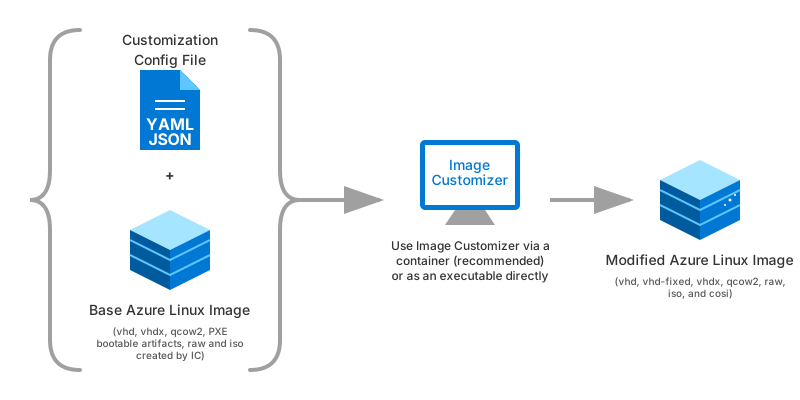
The end result is a set of variant-specific configs. Today it generates two:
- osguard-amd64.yaml
- Built from merging
osguard-base.yamlwithosguard-no-ci-delta.yaml - Standard OS Guard image
- SELinux permissive
- IPE not enforced
- Built from merging
- osguard-ci-amd64.yaml: Code Integrity variant with enhanced security:
- Built from merging
osguard-base.yamlwithosguard-ci-delta.yaml - SELinux in enforcing mode
- dm-verity signature verification required (dm_verity.require_signatures=1)
- EROFS-snapshotter for container image integrity via containerd
- Based on Enhanced Read-Only File System
- Container layers must be dm-verity verified
- Built from merging
These configs are then consumed by Image Customizer to build the actual OS images. If you want to tailor the image yourself, this is the tooling you will want to work with.
AgentBaker
AgentBaker solves a different problem: it is the provisioning stack AKS uses to build and deliver node images. Its README describes it as a collection of components for Kubernetes node provisioning in Azure, including packer templates and scripts to build VM images, templates and an API to render them, and an API to retrieve the latest VM image version for new clusters.
So Image Customizer defines how an Azure Linux OS Guard image gets built. AgentBaker takes those built images and provisions them as AKS nodes. Different tools, complementary roles in the same pipeline.
The primary consumer of AgentBaker is Azure Kubernetes Service (AKS), and Azure Linux with OS Guard for AKS is one of the supported options.
Microsoft has published a tutorial on how you can create a standalone Azure VM that runs Azure Linux with OS Guard.
OS Guard on AKS: Particularities
At the time of the preview, there’s still a couple of important caveats you need to be aware of. This is a pretty significant list, but let’s hope that the Azure Linux team is able to work through as they make OS Guard generally available.
- Kubernetes version 1.32.0 or higher is required for Azure Linux with OS Guard.
- All Azure Linux with OS Guard images have Federal Information Process Standard (FIPS) and Trusted Launch enabled.
- Azure CLI and ARM templates are the only supported deployment methods for Azure Linux with OS Guard on AKS in preview. PowerShell and Terraform aren’t supported.
- Arm64 images aren’t supported with Azure Linux with OS Guard on AKS in preview.
- Though it seems to be on its way via this pull request, I’m rooting for this one.
NodeImageandNoneare the only supported OS Upgrade channels for Azure Linux with OS Guard on AKS. Azure Linux with OS Guard versions are upgraded through node image upgrades. -UnmanagedandSecurityPatchare incompatible with Azure Linux with OS Guard due to the immutable/usrdirectory.- Artifact Streaming isn’t supported.
- Pod Sandboxing (Kata Containers) isn’t supported.
- Confidential Virtual Machines (CVMs) aren’t supported.
- Gen 1 virtual machines (VMs) aren’t supported.
- Azure Linux with OS Guard for AKS is not supported with NVIDIA GPUs or AMD GPUs.
It’s unfortunate that there is no Arm64 or Confidential VM support, at least not yet!
During testing, I encountered a provisioning issue where node pools remained stuck in “Creating” state due to CSE extension failures exit code 178: "sudo: Account or password is expired". This caused VMSS instances to continuously recycle without successfully creating nodes. Microsoft is aware of the issue and working on a fix for an upcoming release. I’ve documented the behavior in issue #5567 on the AKS GitHub repository.
Additionally, while testing ephemeral OS disk support, I discovered that the Trusted Launch + ephemeral OS disk combination fails on NVMe-placement VM sizes (v6 and later series) but succeeds on temp disk placement VM sizes (v4/v5 series). This limitation appears to be specific to the NVMe architecture and wasn’t documented in the preview guidance at the time of testing.
Other Paths to Immutability Beyond Linux
Immutable OS concepts aren’t unique to Linux. Other operating systems have their own approaches worth understanding, even if they take different architectural paths.
macOS
macOS locks its core system behind a cryptographically signed, read-only volume. This article explains how macOS uses APFS snapshots for atomic, all-or-nothing updates. The immutability and atomic update mechanisms are technically separate features (you can have one without the other), but Apple pairs them together. When the system can’t be modified at runtime, atomic updates become the natural way to roll out changes.
FreeBSD
FreeBSD doesn’t have a single, standardized immutable OS model like OS Guard. What I found is an operational pattern that uses ZFS snapshots and jails: each deployment runs in its own jail cloned from a base snapshot, and rollbacks are just a traffic switch back to the previous jail. ZFS copy-on-write makes clones fast and space-efficient, while jails provide container-like isolation for applications.
The approach documented by Conrad Research is one practical, opinionated way to implement that pattern. It’s closer to how you’d deploy container images: build once, clone per deploy, switch traffic, roll back by swapping instances. That workflow is different from OS-level versioning like ostree. The host OS stays traditionally managed and mutable while the applications are deployed immutably. That is a different model from OS Guard, where the host OS itself is kernel-enforced and cryptographically verified at runtime.
Windows
Windows takes a component-based approach with Component-Based Servicing (CBS), updating thousands of individually versioned components in place. While updates are transactional at the component level, Windows remains fundamentally mutable and doesn’t provide image-based, snapshot-driven atomic upgrades or guaranteed rollbacks like immutable Linux systems or macOS. This TechCommunity article from 2008 explains how CBS works under the hood. Don’t worry though, it was updated in 2023, so it’s still relevant!
These different approaches show there’s no single way to solve OS reliability and consistency. What matters is matching the solution to your operational model. For Kubernetes workloads, immutable Linux distributions like Azure Linux OS Guard align particularly well with how teams already manage containerized infrastructure.
Wrapping up
During the two months of research into this topic, I came to a conclusion that I had reached before while researching various other subjects: building an operating system, or even a Linux distribution, requires a significant amount of work and coordination.
There are many different parts that come together to form the whole, each with its own ecosystems, procedures, and ways of working. It made me appreciate those seemingly smaller bits of software that have an incredible depth and history. Sure, there is the OS kernel, and that takes a lot of time ot build, but don’t mistake the importance of the other bits of software that look like supporting actors; they really are part of what makes this whole interconnected world work.
If you want more information on Azure Linux with OS Guard on AKS, visit the AKS engineering team’s AKS LABS workshop. Huge thanks to them, because this site is an essential treasure trove of information.
I wrote this in an attempt to learn more about this particular subject, and since I am hardly an expert at each of the above topics, I most likely made some mistakes along the way. If you spot them, don’t hesitate to let me know. I welcome your feedback and look forward to learning more!
Further learning
- Colin Walters - “Immutable” → reprovisionable, anti-hysteresis
- All of Dan Walsh’s blogs on SELinux are incredibly insightful.
- RHEL 10 - Chapter 1. Getting started with SELinux
- SELinux and RHEL: A technical exploration of security hardening(Sandipan Roy)
- Red Hat Developer - My advice on SELinux container labeling (Daniel Walsh)
- How SELinux separates containers using Multi-Level Security - (Dan Walsh, Lukas Vrabec, Simon Sekidde, Ben Bennett)
- Recommendations for container and security optimized OS options on Azure Kubernetes Service (AKS) - AKS engineering blog
- Azure Linux: A container host OS for Azure Kubernetes Service (AKS) Q&A | DIS228H
- Oliver Smith - Ubuntu Core as an immutable Linux Desktop base
- Ostree for the Uninitiated - Davis Roman
- Tags |
- Azure
- Compute
- Kubernetes
Related posts
- Windows Containers: Azure Pipeline Agents with Entra Workload ID in Azure Kubernetes Service
- Register Azure Pipeline Agents using Entra Workload ID on Azure Kubernetes Service
- Azure Confidential Computing: CoCo - Confidential Containers
- Exploring AI CPU-Inferencing with Azure Cobalt 100
- Making Sense of AI
- Azure Confidential Computing: Confidential GPUs and AI
- Azure Confidential Computing: Confidential Temp Disk Encryption
- Azure Confidential Computing: Secure Key Release - Part 2
- Azure Confidential Computing: Microsoft Azure Attestation
- Azure Confidential Computing: Azure RBAC for Secure Key Release
- Azure Confidential Computing: Verifying Microsoft Azure Attestation JWT tokens
- Azure Confidential Computing: Secure Key Release
- Azure Confidential Computing: Confidential VMs
- Azure Confidential Computing: IaaS
- Local OpenShift 4 with Azure App Services on Azure Arc